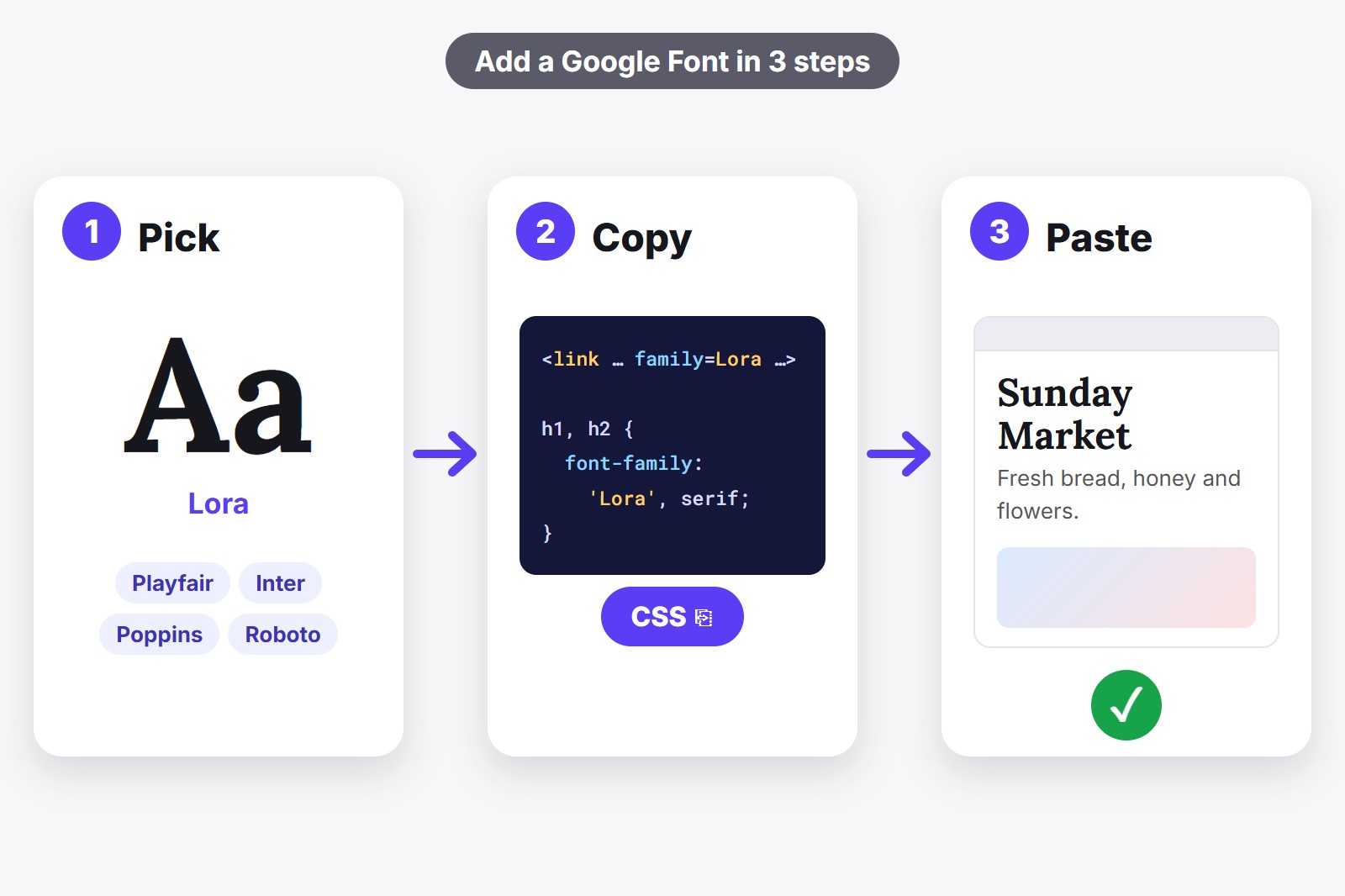
To add a Google Font to your website, you do two small jobs: load the font, then tell your text to use it. You can load it with a <link> tag in your page’s head, with an @import line at the top of your CSS, or from font files you host yourself. The quickest way to get the exact lines is the free FontMee extension: try the font on your own site, press Copy CSS and paste. Below are all three ways, with code you can copy as it is.
What “adding a font” really means
Think of a font as a guest at a dinner party. First you have to invite it, which means your page has to download the font file. Then you have to give it a seat, which means telling your text to use it. Skip the invitation and the font never shows up. Skip the seat and it sits in the corner while your text keeps its old font.
Both jobs are written in CSS, the set of style rules that tells a website how to look. The invitation goes in the head of your page (a hidden area at the top of the HTML where the browser reads its setup instructions) or at the very top of your CSS file. The seat is one short rule, like the one in the examples below. Whichever way you pick, those two jobs stay the same.
Way 1: A link tag in your page’s head
This is the method Google shows on its own website. You put three lines in the head of your page: two that tell the browser to get ready to connect to Google, and one that loads the font. It usually loads a little sooner than the other ways, because the browser can start fetching the font before it has even read your CSS.
<head>
  <link rel="preconnect" href="https://fonts.googleapis.com">
  <link rel="preconnect" href="https://fonts.gstatic.com" crossorigin>
  <link rel="stylesheet" href="https://fonts.googleapis.com/css2?family=Lora:wght@400;700&display=swap">
  <style>
    h1, h2 { font-family: 'Lora', serif; }
  </style>
</head>
The last bit of the link, display=swap, tells the browser to show your text in a backup font right away and swap in the real one when it arrives, so visitors never stare at blank space. The word after the comma in your rule (serif) is that backup, and Google recommends always adding one. Use this way when you can edit your page’s HTML.
Way 2: An @import line at the top of your CSS
Sometimes you cannot touch the head of the page, only the CSS. That is the case with the Additional CSS box in WordPress, the CSS section of many website builders, or a plain style.css file. Then the invitation can live inside your CSS instead, as one line that has to sit at the very top, above every other rule.
@import url('https://fonts.googleapis.com/css2?family=Lora:wght@400;700&display=swap');

h1, h2 { font-family: 'Lora', serif; }
It is the simplest one to paste, but it is usually a touch slower than the link tag, because the browser only discovers the font after it has read your CSS. On a small site you will hardly notice.
Way 3: Host the font files yourself
Here you download the font files from Google, upload them to your own website and point to them, so your visitors’ browsers never contact Google at all. Some people choose this for privacy, some for speed, and some because rules about it differ from country to country, so check what applies to your visitors. It takes a few more steps, but nothing is hard: you copy a folder, then add a rule that says where the file lives.
@font-face {
  font-family: 'Lora';
  src: url('fonts/lora-latin-400.woff2') format('woff2');
  font-weight: 400;
  font-display: swap;
}

h1, h2 { font-family: 'Lora', serif; }
Google Fonts are open source, so you may download and host them, including for commercial projects. The slow part is finding and downloading every file and writing every @font-face block by hand. FontMee does that for you, as you will see in a moment.
Which way should you pick?
- You can edit your page’s HTML: use the link tag (Way 1).
- You can only edit CSS, or you use a website builder with a CSS box: use @import (Way 2).
- You want visitors’ browsers to load everything from your own server: host the files (Way 3).
Not sure? Start with Way 1 or Way 2. You can switch later, and only the one line that loads the font changes.
Get the exact code with FontMee
Typing these lines by hand is where most mistakes happen: a missing plus sign, a weight the font does not have, a rule that does not match your headings. FontMee is a free Chrome extension, a small add-on that gives the browser one new feature, and it writes the lines for you. You try a font on your real site first, see how it looks, then copy the code for exactly that choice. It has more than 1,900 fonts, and the video shows the panel at work.
- Install FontMee. Add it from the Chrome Web Store. It is free and needs no account. Click the puzzle icon in Chrome and pin it, so it is always one click away.
- Open your website and click the FontMee icon. The panel opens beside the page. You can also press Alt + Shift + F. Chrome’s own pages (New Tab, the Web Store, chrome:// pages) cannot be changed.
- Choose where the font goes. Under Apply changes to pick Everything, Headings or Body, then click a font. You can do headings and body text separately.
- Check it on the real page. Switch between Original font and FontMee preview, and use Tune for size, weight and line height until it looks right.
- Press Copy CSS. A window opens with four tabs: CSS (the @import way), HTML (the link tag way), Variables and Tailwind for people who use those. Pick the tab that matches your way, press Copy to clipboard and paste it into your site. FontMee only asks Google for weights the font really has, so you do not end up with a broken link.
- Want Way 3? Press Download self-hosted ZIP in the same window. You get a folder with the font files, a
fonts.css, afontmee.cssand a short README. Upload the folder and add the two stylesheet links.
Four things to check before you publish
- Load only what you use. Every extra font and weight makes your page a little heavier. Two fonts and two weights are plenty for most sites.
- Keep a backup font. End every
font-familywith a generic name likeseriforsans-serif, so text still looks fine while the font loads. - Check the letters you need. Accents like ł, č and ş, and Cyrillic or Vietnamese letters, are not in every font. Preview your own words in FontMee before you copy.
- Check the licence. Google Fonts are open source and free for commercial use. The FontMee code window lists each font’s licence, so you can see it before you publish.
No website yet? Then the font comes second. A site also needs a home to live in, and a builder is the quickest way to get one without code.
Get the extension
FontMee is free, with 1,900+ fonts, Copy CSS in four formats, a self-host ZIP and your own font uploads. No account, no subscription. Add it from the Chrome Web Store, or read the FontMee page first.
Good to know before you start
- A preview changes your screen only. Other visitors see the normal fonts until you add the code to your site.
- The code is a starting point. If a font does not change somewhere, add !important after its value. FontMee’s note at the top of the code says the same.
- Fonts are fetched from Google Fonts and Fontshare when you preview them. So you need an internet connection.
- Text inside pictures cannot change. Only real, selectable text does.
- Previewing a font is not a licence. Google Fonts are open source and Fontshare fonts are free to use. For fonts you upload yourself, check the licence first.
FAQ
Pick the font, load it with a link tag in your page’s head or an @import line at the top of your CSS, then use it with a font-family rule. FontMee can write both lines for you after you try the font on your site.
Yes. Google Fonts are open source and free, including for commercial projects. FontMee lists each font’s licence when you copy the code.
The link tag in the head usually loads a little sooner, so use it when you can edit your HTML. @import is perfect when you can only edit CSS. Both work.
Paste the CSS where your site keeps its custom styles. FontMee’s code window suggests WordPress (Customizer, Additional CSS), Shopify (theme editor), Webflow (Custom code) or your own style.css.
Usually another rule on the page is stronger. Add !important after the font name in your rule, check that the @import is the very first line of your CSS, and clear your cache. FontMee’s code starts with a note about both.
Yes. All 1,900+ fonts, every layer, Copy CSS, the self-host ZIP and uploading your own fonts are free, with no account and no limits.
FontMee — Free, 1,900+ Fonts
Made by GetPlugzz. Free, with no account and no tracking.
Free PDF guide: try any font on any website like a pro
Every FontMee button explained in 10 short pages: the 4 layers, the font library, tuning, pairings, before / after, Copy CSS and keeping what you like. Enter your email and the download starts right away.
We add your email to the GetPlugzz newsletter (new posts, tools and extensions). No spam, and you can unsubscribe any time. Privacy







