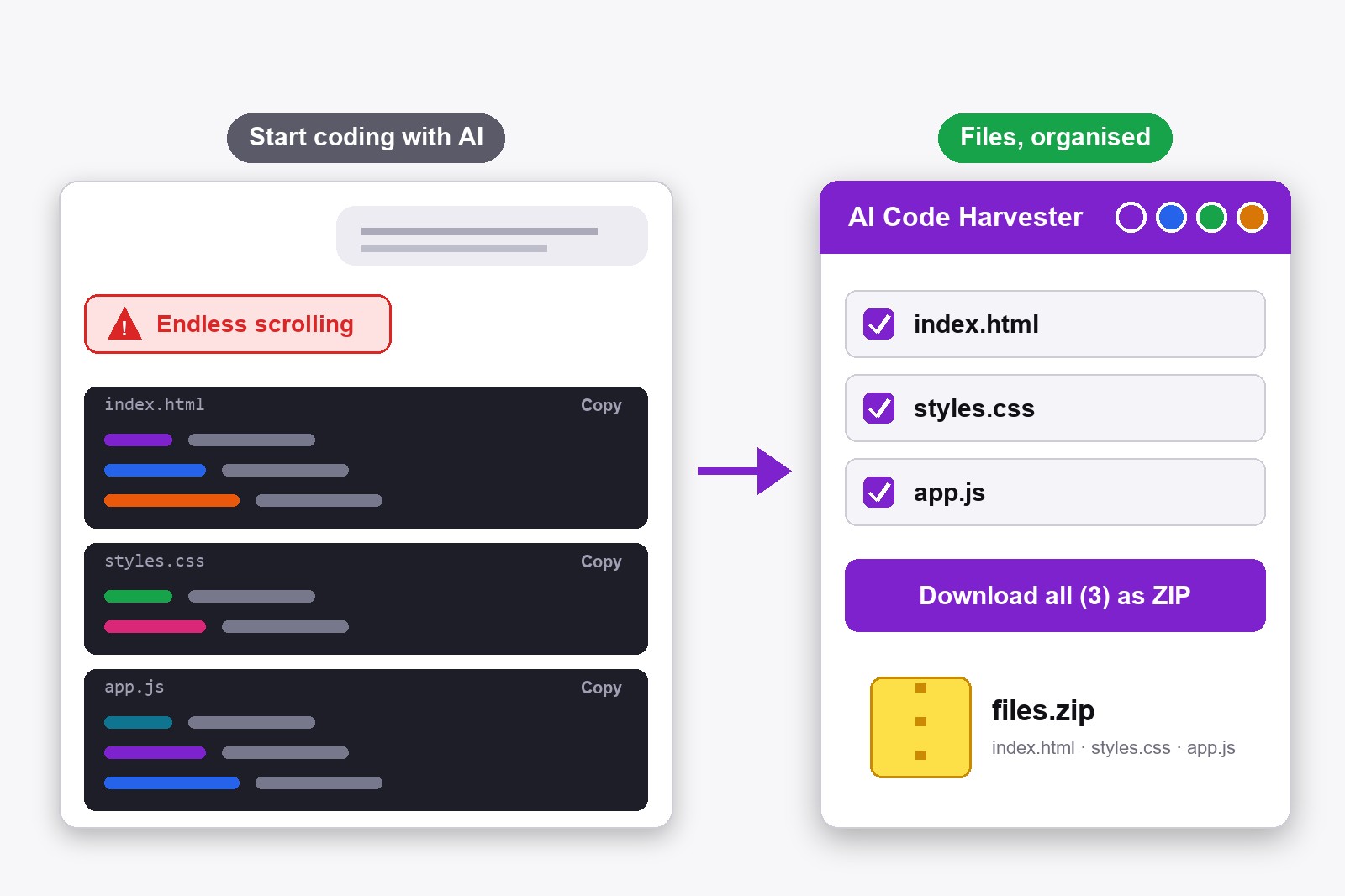
Vibe coding means describing what you want in plain words and letting ChatGPT or Gemini write the code. To do it well as a beginner, ask for whole files, one small step at a time, and save every working version. The free AI Code Harvester extension lists every file from the chat and downloads them in one click, so you do not scroll for code. It runs in your browser and needs no account.
What vibe coding is, and where beginners get stuck
In vibe coding you do not write the code yourself. You tell the AI what to build (a landing page for my bakery), it writes the files, you test them, and you say what to change. It is a real way to start, because you see results in minutes. The trouble comes after an hour. The chat is now very long, the code is spread over many answers, and you scroll up and down to find the last version of each file. You copy, paste, lose track and break something that worked. The habits below fix most of that.
Seven habits that make coding with an AI easier
- Start with one clear sentence. Say what you are building, for whom, and what it should look like. A one-page website for a dog walker, with a photo, prices and a contact form. A clear goal beats a long prompt.
- Ask for the full file every time. Write: Always show the complete file, not just the changed lines. Partial snippets are the number one reason beginners paste code in the wrong place.
- Make the AI name every file. Ask it to write the file name and extension above each code block, such as index.html or style.css. Save it once as a rule: in ChatGPT go to Settings → Personalization → Custom Instructions.
- Change one thing at a time. One request, then test it. If you ask for ten changes at once and something breaks, you will not know which change did it.
- Copy the error message back. When the page is blank or a button does nothing, paste the exact error text into the chat and say fix this. You do not need to understand it yet.
- Save a working version before each big change. Download the files, put them in a folder, and keep that copy. If the next answer breaks everything, you go back in a minute.
- Ask why, in plain words. Say explain what this part does as if I am new. A short course on the basics, alongside the chatting, helps a lot, because then you can tell when the AI is wrong.
The helper that ends the scrolling: AI Code Harvester
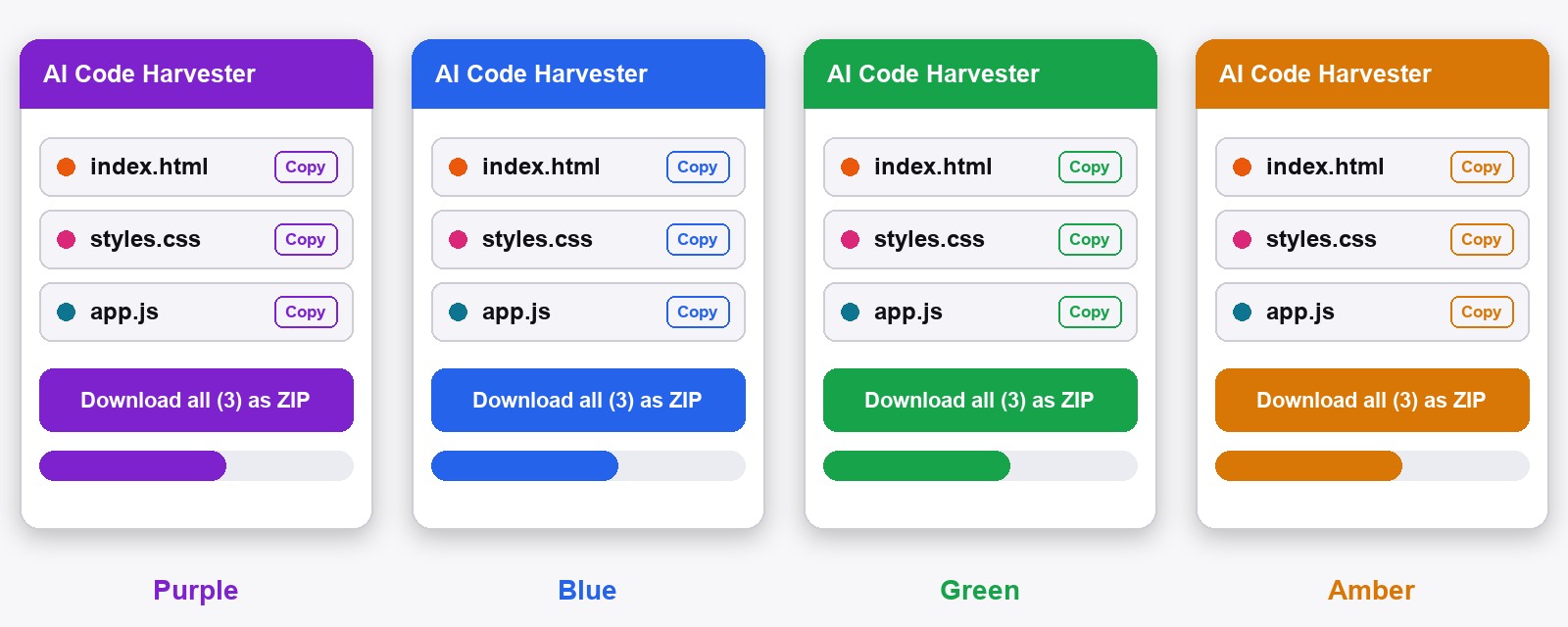
- A file list, not a long chat. The panel shows every code block of the latest answer as a row with the file name and a coloured dot for its type.
- Copy or jump. Each row has a Copy button, and an arrow button that scrolls the chat to that block.
- Pick what to save. Tick or untick Include in download for each file.
- One click for everything. Download all as ZIP saves the whole answer as one ZIP. Prefer separate files? Switch to 1-by-1.
- Handy extras. A Jump to Bottom button, an opacity slider so the panel does not block the chat, and a button that explains the setup.
- It stays where you put it. Drag it, resize it or minimise it, and it can remember its position.
You can also change the look. In the settings you pick one of four accent colours: purple, blue, green or amber, and you choose where files go: a folder called AI_Code_Harvester inside Downloads, plain Downloads, or ask every time. Setup takes a minute: add it from the Chrome Web Store and open ChatGPT or Gemini.
Why install it on day one
When you are new, you make many small attempts, and every attempt produces files. Without a helper, each one is a manual job: scroll, select, copy, paste into a file, name it. With the Harvester it is one click, and the files already have the right names, so your project folder stays tidy from the first day. That makes habit six (save a working version) almost free, and it is the reason the extension is most useful at the start. It is free, it works only on chatgpt.com and gemini.google.com, and your chats stay on your computer. More on the AI Code Harvester page.
Honest limits
- It only collects code blocks. If the AI gives you only a PDF, a picture or a file link, there is nothing on the screen to save.
- It does not recreate folders. The ZIP is flat, so you move files into folders yourself.
- It does not write or fix code. That is still the AI’s job, and yours to test.
- Canvas views (the side window some chats open) may not be found. Ask the AI to paste the code into the chat.
Already know the save-to-ZIP part? The step-by-step is in our guide to downloading AI code as a ZIP.

Good to know before you start
- Vibe coding is not magic. The AI can be wrong, so always test what it gives you before you rely on it.
- Never paste passwords or secret keys into a chat. If a project needs one, keep it in a private file and leave it out of the prompt.
- The extension works on chatgpt.com and gemini.google.com only. Use Chrome or a Chromium-based browser.
- It saves what is written in the chat. No code blocks on screen means nothing to collect.
- It is free and stays on your computer. No account, no upload, and we do not read your chats.
FAQ
Vibe coding is building software by describing what you want in plain language and letting an AI such as ChatGPT or Gemini write the code. You test the result and ask for changes, instead of typing the code yourself.
Yes, to start with. Ask for small steps, ask the AI to explain each part in simple words, and test everything. Add a beginner course alongside, so you can judge the answers yourself.
Both can write working code. Pick the one you already use. The habits in this guide, such as asking for whole files and one change at a time, work the same in both.
Ask the AI to put the file name above each code block, and download each working version. The AI Code Harvester lists the files and saves them as one ZIP in a click.
Yes. Every feature is free and you do not need an account.
No. It works locally in your browser. Your prompts and your code do not leave your computer.
AI Code Harvester — Free, Local, No Account
Made by GetPlugzz. Local processing only: nothing is sent, nothing is tracked.







