The quickest way to run HTML code from ChatGPT or Gemini is to press Show in the free AI Code Harvester extension: your page opens live in a new tab, with buttons to see it at computer, tablet and phone size, and you never have to save a file. Without the extension you copy the code into a file called index.html and double-click it, which is explained below.
Why code in a chat is not a web page yet
When ChatGPT or Gemini “builds a website”, what it really gives you is text: a block of HTML (the skeleton of the page), often a block of CSS (colours and layout) and a block of JavaScript (buttons and actions). Think of a recipe. All the words are there, but nobody has cooked the dish yet. A web browser is the oven that turns the recipe into something you can look at.
Some chats show a small preview of their own, but not always, not for every kind of code, and it is gone when you leave the chat. If you want to see the page properly, on different screen sizes, and come back to it later, you need to run it yourself.
The easy way: press Show
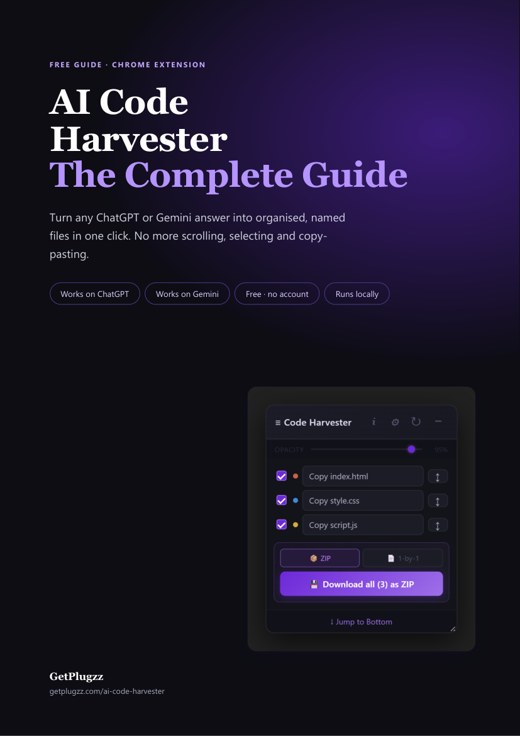
AI Code Harvester is a free Chrome extension (a small add-on that gives your browser one new feature). It sits on the ChatGPT and Gemini pages, finds the code blocks in the answer and, when one of them is a web page, shows it for you. Here is a short video, then the steps.
- Install the extension. Add it from the Chrome Web Store. It is free and needs no sign-up.
- Ask the AI for a page. For example: “Make a one-page website for a small bakery with an order button. Give me index.html, style.css and app.js.” Naming the files helps.
- Wait for the answer to finish. The small Code Harvester panel on the page lists the files it found.
- Press Show. Your page opens in a new tab. If you parked the panel on the edge of the screen as a slim drawer, the Show button is on the drawer.
- Try the three size buttons: Desktop, Tablet and Mobile. They show how the page fits a computer screen, a tablet and a phone.
- Not happy? Ask the AI for a change. When it answers, the preview refreshes by itself, so you can keep asking and keep looking.
- Want more room? Press Open ⤢ in the panel. The Workspace opens with a Preview tab, a Reload button and a list for choosing which file to look at.
How does it put the pieces together? A web page usually asks for its other files by name, for example style.css and app.js. The extension finds them in the same answer and slips them into the page, so it looks and works as if they were saved next to each other. If the answer has more than one HTML page, a drop-down lets you pick which one to look at.
Is it safe to run code an AI wrote?
The preview runs in a locked room, which programmers call a sandbox. The page can draw itself and run its own buttons, but it has no access to the extension, your browser or your data. If the page loads a library from the internet, that also happens only inside that locked room. Still, code is code, so treat a page you have not read like any file from a stranger. The preview is built on your computer and nothing is uploaded to us.
No extension? The by-hand way
It works without any tool. It just takes a few more steps, and you repeat them after every change.
- Copy the HTML block from the chat.
- Paste it into Notepad (or any plain text editor) and save it as
index.html. In the Save window choose “All files”, so it does not end up asindex.html.txt. - Do the same for the CSS and JavaScript blocks, with the names the HTML asks for (for example
style.cssandapp.js), in the same folder. - Double-click index.html. It opens in your browser as a real page.
- Changed something? Save the new code over the old file and press refresh in the browser.
The usual stumbling block is a page that looks bare or has buttons that do nothing. Most of the time a file name does not match what the HTML asks for. In the extension’s preview, if the names differ, it uses the next unused file of the right type, so it forgives this. By hand, you need to fix the name yourself.
When the preview looks wrong
- It looks empty or half-finished. The latest answer may hold only part of the code, for example one changed file. Ask the AI to “give me the complete files again”.
- Pictures are missing. A chat cannot send image files. Use pictures from web addresses, or add your own images later.
- Buttons do nothing. Look for a JavaScript file in the panel’s list. If the AI put it in a different answer, ask for all the files in one answer.
- Fine on the computer, broken on the phone. Press Mobile, see what is wrong, and ask the AI to “make it work on small screens”.
- Pages that need a login or a database. You will only see how they look here, not how they behave. They need a real server.

Ask the AI for pages that preview well
- Ask for all the files in one answer, with the file name written above each block.
- For a simple page, ask for a single file: “put the CSS and JavaScript inside the HTML”.
- Say who it is for: “it must look good on a phone”.
- Change one thing at a time. It is easier to see what went wrong.
When the page looks right, the next question is how to put it online for other people. Our guide Where to publish the web page your AI made goes through the free and paid options in plain words. AI Code Harvester does more than preview: it can download everything as a ZIP (with your own folders if you like), export a single page, or carry the chat to another AI. It reads ChatGPT and Gemini chats and runs on your computer. Add it from the Chrome Web Store.
Good to know before you start
- A preview shows what the code says, not what you meant. If the AI got something wrong, the page will show it. Ask for the change you want.
- It reads the latest answer that contains code. If the AI sends only one changed file, ask for the full set so the page has everything.
- Pictures need web addresses. Image files cannot travel in a chat, so link to pictures online or add your own later.
- Not everything can run in a preview. Pages that need a database, a login or a server only show their look here.
- The preview is only on your computer. Nobody else can see it until you publish it.
FAQ
Press Show in AI Code Harvester and the page opens live in a new tab. Without it, paste the HTML into a file called index.html and double-click it. Do the same for the CSS and JavaScript files the page asks for.
Yes. AI Code Harvester works on both ChatGPT and Gemini pages. The steps are the same: wait for the answer, then press Show.
Not to preview. Show works straight from the chat. If you want to share the page or work on it elsewhere, download the files as a ZIP, or as a single page that you can open by double-clicking.
Usually yes, because it is the same code. Fonts or pictures loaded from the internet need a connection, and pages that depend on a server will behave differently, so check the real address once it is live.
The preview runs in a sandbox with no access to the extension, your browser or your data. Still, read code you do not understand before you publish or share it, as you would with any file from a stranger.
No. It shows the page at a phone’s width, which is good for checking the layout. It is not the same as testing on a real phone, so do that too before you publish.
Yes. It is free and needs no sign-up. Try Show on your next page from the AI and see if it saves you the file juggling.
AI Code Harvester — Free, Local, No Account
Made by GetPlugzz. Local processing only: nothing is uploaded, nothing is tracked.
Free PDF guide: code with AI without the scrolling
Every Harvester button explained in 12 pages, with a 3-minute quick start and a bonus: a cheat sheet of 7 habits for coding with AI. Enter your email and the download starts right away.
We add your email to the GetPlugzz newsletter (new posts, tools and extensions). No spam, and you can unsubscribe any time. Privacy







