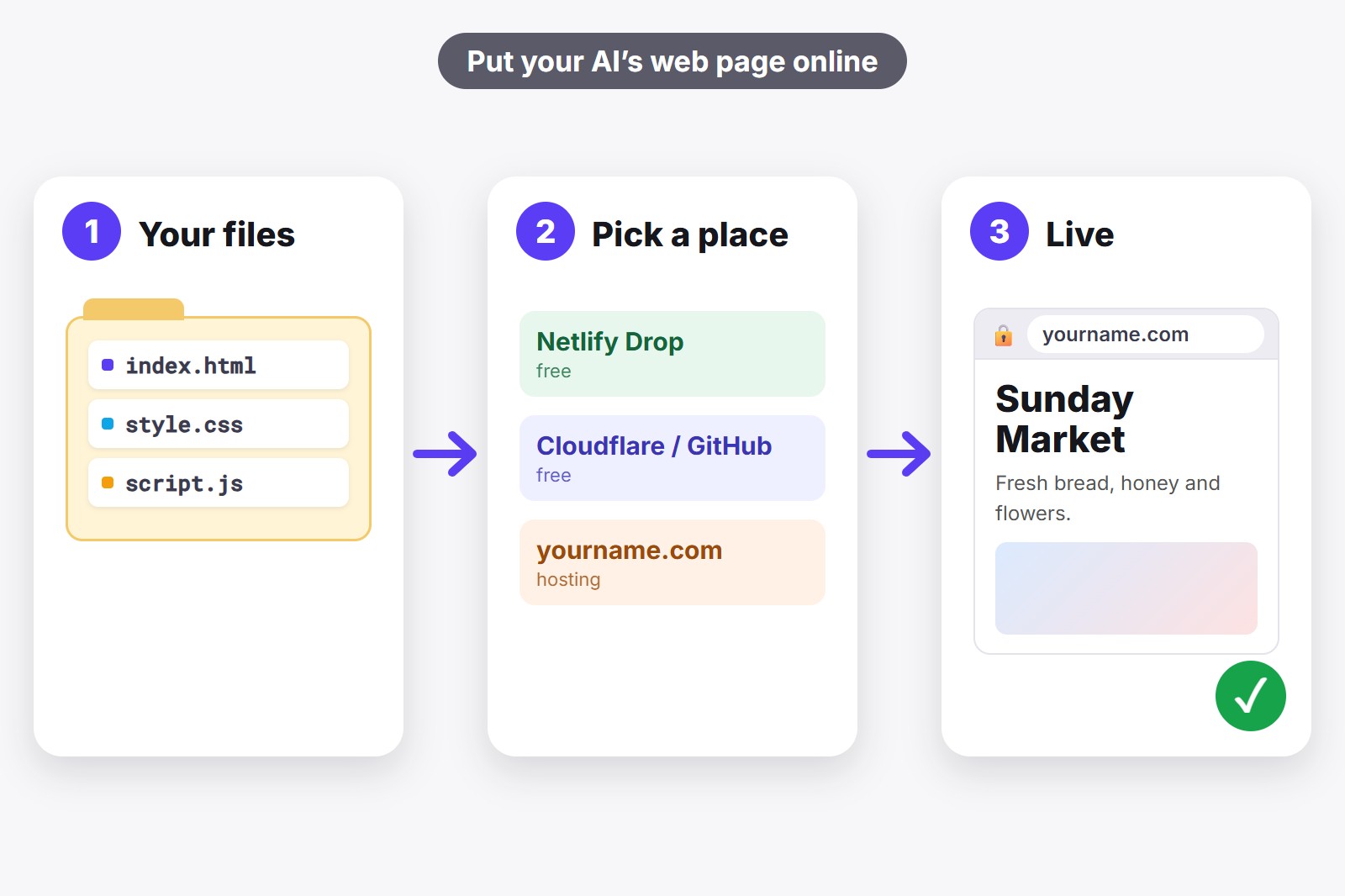
The quickest free way to publish a web page your AI made is Netlify Drop: you drag the folder with your files onto a web page and it goes live, with no account needed. If you want something that lasts and has your own address, like yourname.com, a hosting plan such as Bluehost (paid link) is the simple paid route. Either way, you first need your files together in one folder, and the free AI Code Harvester extension can do that in one click.
First, what you actually have
When ChatGPT or Gemini builds a web page, it hands you code: usually one HTML file (the page itself), often a CSS file (the colors and layout) and a JavaScript file (the buttons and actions). Right now they only exist in your chat or on your computer. To let other people see the page, the files have to sit on a web server, which is simply a computer that is always switched on and shows your page to anyone who types its address. That is all “publishing” means.
Good news: a page like this is “static”. That means it is just files, with no database and no logins running behind it. Static pages are the easiest kind to publish, and several services do it for free. If your page needs to remember visitors, take orders or store data, that is a bigger project and a plain file host is not enough.
Which option is for you?
- You want to show it to someone today: Netlify Drop (free, the quickest).
- You want it free and lasting, and a few extra steps are fine: Cloudflare Pages or GitHub Pages (free).
- You want your own address and one place for everything: a hosting plan, for example Bluehost (paid).
- You would rather not touch files at all: a website builder (paid).
Step zero: put your files in one folder
Whatever you choose, start here. The main file must be called index.html, because that is the file a server shows first. The other files (the CSS and JavaScript) go in the same folder, with the same names the HTML mentions. If the AI gave you the code in several pieces, copying them by hand is where people get stuck.
The shortcut is AI Code Harvester, a free Chrome extension (a small add-on that gives the browser one new feature). It finds the code in the chat and turns it into named files. Press Download ZIP for a folder of files, or open the Workspace and use Single page (.html), which merges the styles and scripts into one file that is hard to break. The short video shows how.
- Get the files. Download the ZIP from AI Code Harvester and unzip it into a new folder.
- Name the main file index.html. If the AI called it something else, rename it.
- Test it on your computer. Double-click
index.html. If the page looks right, you are ready. - Take out anything private. Look through the code for passwords or API keys. Anyone can read a published page’s code.
Option 1: Netlify Drop (free, the quickest)
Netlify Drop is a web page where you drag a folder and your site goes live. Netlify says no account is needed to use it, which makes it the best choice for “I just want to show this to someone”.
- Open
app.netlify.com/dropin your browser. - Drag your folder (or a ZIP of it) onto the page.
- Wait a moment. You get a live address ending in
netlify.app. - Open that address in a private window to check it, then share it.
The catch: if you drop a folder without signing in, Netlify protects the project with a temporary password until you claim it by signing up (free). So if you want other people to see it, create the account, claim the site and check that it is set to public. To update the page later, you drop the folder again. Netlify recommends keeping a deploy under about 50 MB.
Option 2: Cloudflare Pages (free, built to last)
Cloudflare is a large company that runs part of the internet’s infrastructure, and its Pages service hosts static sites for free. You upload a folder or ZIP in its dashboard (the control panel on its website). It needs a free Cloudflare account, and your address looks like yourproject.pages.dev.
- Create a free Cloudflare account and open Workers & Pages.
- Choose Create application, then Get started, then Drag and drop your files.
- Give the project a name, drag in your folder or ZIP and press Deploy site.
The catch: the menus change from time to time, so the buttons may be named a little differently when you look. The upload limit is 1,000 files and 25 MiB per file, which is plenty for an AI-made page. Updating means uploading again.
Option 3: GitHub Pages (free, if you like GitHub)
GitHub is the website where developers keep their code in “repositories”, which are folders of files stored online. GitHub Pages turns a repository into a website. It is free and a long-time favorite, but it has the most steps of the free options.
- Create a free GitHub account and a new repository named
yourusername.github.io. - Upload your files, with
index.htmlat the top level. - Open the repository’s Settings, then Pages, and under Build and deployment choose Deploy from a branch and pick your main branch.
- Wait a few minutes, then open
https://yourusername.github.io.
The catch: changes can take up to 10 minutes to appear. Also remember that anything you put in a public repository can be seen by everyone, so check the files before you upload them.
Option 4: Your own hosting and domain (Bluehost)
Two words you will meet here. Web hosting means renting space on a web server, so your files stay online around the clock. A domain is your address, like yourname.com. With hosting and a domain you choose how your page is called, you can use it for a business, and you are not tied to the rules of a free service.
Bluehost (paid link) is a hosting company that many people start with. Its shared hosting page lists free SSL (the padlock that makes your address start with https), one free domain for the first year (you must claim it within 90 days, and it covers certain domain endings), and a 30-day money-back guarantee on hosting. Check the current offer and renewal price on their page before you buy.
- Choose a hosting plan and pick your domain.
- Open the hosting control panel and find the folder that holds your website’s main files (often called
public_html). Your host’s help pages show where it is. - Upload your files there, with
index.htmlat the top, and open your domain in a private window.
The catch: this is the only option here that costs money, and prices after the first period can change, so read the renewal terms. In return you get your own address, a place for more pages later and an easy way to add email on your domain.
Want your own address? How a domain works
A domain is the name people type to find you, like yourname.com. It has a name part and an ending (.com, .org and many others). You do not buy it forever: you rent it, usually one year at a time, and you renew it.
There are three common ways to get one:
- Together with hosting. Bluehost (paid link) lists one free domain for the first year with its hosting (you must claim it within 90 days, and it covers certain endings). This is the simplest route if you are buying hosting anyway.
- From a domain seller (called a “registrar”). You buy only the name and connect it to wherever your page lives. Some registrars are cheaper than others: Cloudflare Registrar says it does not mark up domain prices, and Netlify also sells domains.
- One you already own. Then you only need the connection step below.
Do you need to pay for hosting to use your own domain? Not necessarily. Netlify, Cloudflare Pages and GitHub Pages all let you connect your own domain to a free site. Check each one’s pricing page for what your plan includes.
- Get the domain from a registrar or with a hosting plan.
- Add the domain in your host’s dashboard. In Netlify use Domains, in Cloudflare Pages open your project and choose Custom domains, in GitHub Pages use the repository’s Pages settings.
- Create the record the host asks for. It is a small line in your domain’s DNS settings (the address book that says which computer a name points to). Usually it is a CNAME record for the www version and an A or ALIAS record for the plain yourname.com. The host shows you the exact values to copy.
- Wait, then test. It can take up to 48 hours to start working, though it is often faster. Open your domain in a private window.
Two notes. Cloudflare Pages needs your domain to use Cloudflare’s name servers if you want the plain version without www. And if your domain and your hosting are both with Bluehost, there is usually less to set up because they live in the same account; their help pages show the steps.
Option 5: A website builder (no files at all)
If folders, uploads and file names make you tired just reading about them, a website builder lets you click your way to a site: you choose blocks, type your text and press publish. With a builder you usually rebuild the page from its own blocks, instead of uploading the AI’s code. Bluehost’s Website Builder (paid link) and Weblium (paid link) are two you can look at. It is the slowest way if you already have the AI’s page, but the easiest if you want to keep changing things by hand.
Four checks before you share the link
- Open it in a private window. This shows what a stranger sees, with no saved logins or cached files.
- Check pictures and links. If something points to a path like C:\Users on your computer, it will break for everyone else. Use files that sit next to
index.html. - Look at it on a phone. Most visitors will. In AI Code Harvester’s preview you can switch between Desktop, Tablet and Mobile widths first.
- Keep secrets out. Never publish a page that contains a password or an API key, because anyone can read the code.
Get the extension
AI Code Harvester is free and works with ChatGPT and Gemini. It finds the code in the chat, lets you preview the page in a safe sandbox, and downloads everything as a ZIP, as one page or together with the chat. It runs on your computer: your code is never uploaded to us. Add it from the Chrome Web Store.
Good to know before you start
- Free hosts have limits. Read the free plan’s limits on their own page, because they change.
- A published page is public. Anyone with the address can open it and read its code, so keep private things out.
- Your own address comes later. Many free hosts let you connect a domain afterwards, so you can start free and move up.
- Pages that need accounts or a database need more than file hosting. Everything here is for static pages.
- Some links in this post are paid. They are marked with (paid link). If you buy through them we may earn a commission, at no extra cost to you.
FAQ
Put the files in one folder, name the main file index.html and upload the folder to a host. The quickest free way is Netlify Drop. You can get the files from the chat as a ZIP with AI Code Harvester.
Yes. Netlify Drop, Cloudflare Pages and GitHub Pages all host static pages for free. You get an address on their domain, such as yourproject.netlify.app, and can usually connect your own domain later.
No. The free options give you an address on their own domain. You only need to buy a domain if you want an address like yourname.com.
Very little. You need to drag a folder or upload files and name the main file index.html. The AI wrote the code, and you only move files.
Hosting is the space where your files live online. The domain is the address people type to reach them. You can have one without the other, but a paid plan often includes both.
Add the domain in your host’s dashboard (Netlify, Cloudflare Pages or GitHub Pages), then create the DNS record it shows you at the place where you bought the domain. It can take up to 48 hours to start working.
Yes. It is free with no account and no tracking. It processes everything on your computer, including the preview and the ZIP.
AI Code Harvester — Free, Local, No Account
Made by GetPlugzz. Local processing only: nothing is uploaded, nothing is tracked.
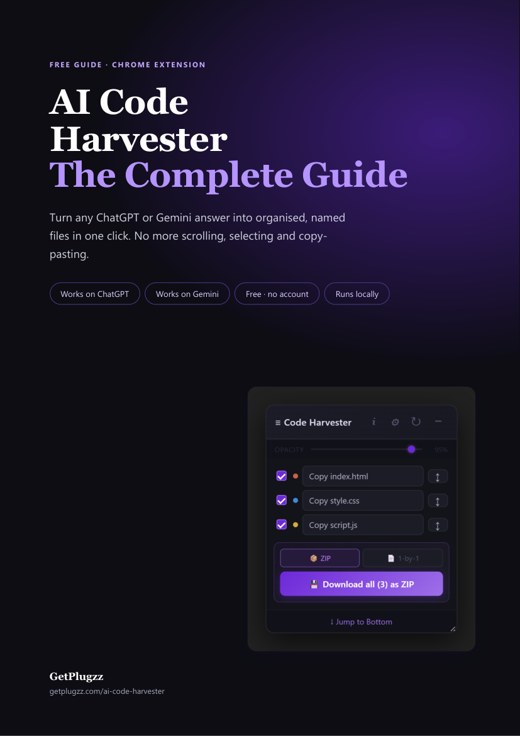
Free PDF guide: code with AI without the scrolling
Every Harvester button explained in 12 pages, with a 3-minute quick start and a bonus: a cheat sheet of 7 habits for coding with AI. Enter your email and the download starts right away.
We add your email to the GetPlugzz newsletter (new posts, tools and extensions). No spam, and you can unsubscribe any time. Privacy







