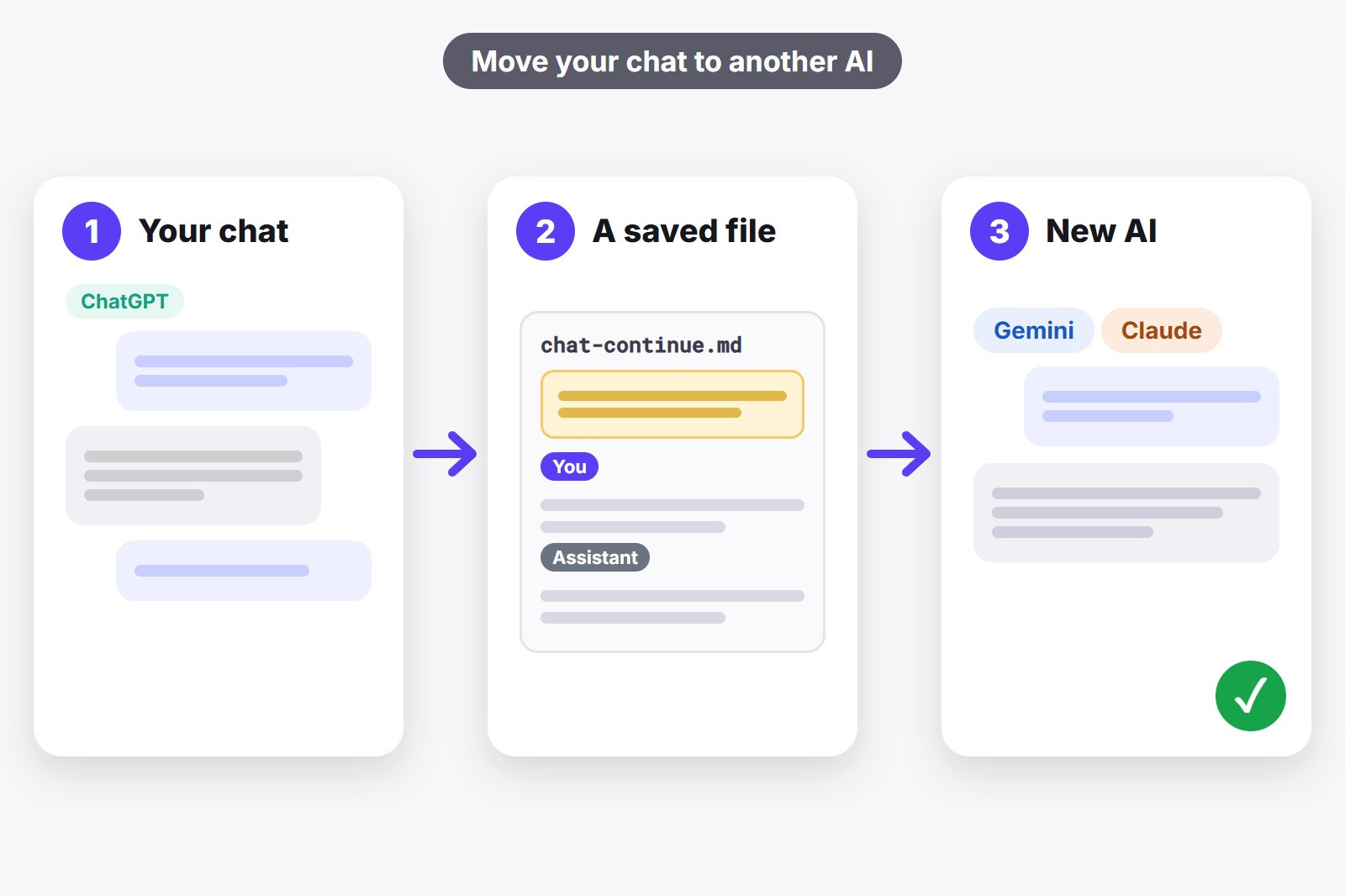
The simplest way to move a ChatGPT chat to another AI is to save the conversation as a plain text file with a short note on top, then paste it (or attach it) into a new chat in Gemini, Claude or any other AI. The note tells the new AI to read everything and carry on from the last message. With the free AI Code Harvester extension this takes about a minute, and you can also do it by hand, which is explained below.
Why there is no “move chat” button
Think of every AI as a separate notebook kept in its own locked drawer. ChatGPT cannot open Gemini’s drawer, and Gemini cannot open Claude’s. They do not share keys, so there is no official “send this chat over there” button.
The good news is that an AI chat is only a long list of messages. The new AI does not need your old account or your password. It only needs the words. If you hand it the whole conversation, it can read it and carry on, a bit like giving a colleague the email thread before a meeting so you do not have to explain everything again.
What travels and what stays behind
- Travels: everything you wrote and everything the AI answered, as text.
- Travels: code, lists and tables, as long as they are text.
- Does not travel: pictures, attached files and voice messages.
- Does not travel: the old AI’s saved memory and your custom instructions, because they belong to the old account.
- Changes: the style. Gemini or Claude will reply in their own voice, even with the same words in front of them.
- Limit: every AI can only read so much at once, so a huge chat may not fit completely.
The one-minute way: AI Code Harvester
AI Code Harvester is a free Chrome extension (a small add-on that gives your browser one new feature). When you have a ChatGPT or Gemini chat open, it reads the conversation on the page and can save it in several shapes. One of them is made for exactly this job: a file for continuing the chat in another AI. Here is a short video, then the steps.
- Install the extension. Add it from the Chrome Web Store. It is free and needs no sign-up.
- Open the chat you want to move, in ChatGPT or Gemini. A small Code Harvester panel appears on the page.
- Press Open ⤢ in the panel. The Workspace, a full-page view, opens in a new tab.
- Click Export in the menu on the left. Under Chat, choose Latest answer or Whole conversation.
- Click “Chat to continue in another AI”. A file whose name ends in
-chat-continue.mdis saved to your computer. - Open Gemini, Claude or any other AI and start a new chat. Attach the file with the attach or plus button, or open it in Notepad, select all, copy and paste it into the chat.
- Send it. The AI reads the saved chat and picks up from the last message. Add one line about what you want next.
What is inside that file? First, four short lines written for the new AI: this is a saved conversation, read all of it, carry on from the last message as if you never stopped, keep the same style, and ask if something is unclear. Then your chat: the title, the date, which site it came from, and every message under “You” or “Assistant”. It is plain text, so any AI can read it, and you can open it in Notepad to check or edit it before you send it anywhere. It is built on your computer and nothing is uploaded.
Latest answer or the whole conversation?
- Latest answer: your last question and the AI’s reply. Best when you only want to carry on with what you just did.
- Whole conversation: everything from the start. Best when the new AI needs the full story, for example a long plan or a project.
- Very long chat? Choose the latest answer, or first ask the old AI to “summarise this chat in 20 bullet points” and move the summary instead. Short and complete beats long and cut off.
No extension? The by-hand way
It works without any tool. It just takes longer, and with a long chat it is easy to miss a bit.
- Copy the chat. Select the messages you want, copy them and paste them into a plain text file or a note.
- Add a note on top. Write something like: “Below is a saved conversation between me and another AI. Read all of it, then carry on from the last message as if we never stopped. If something is unclear, ask me first.”
- Paste it into a new chat in Gemini, Claude or another AI, or attach the file if the AI has an attach button.
- Add what you want next after the pasted text, and send.
You may have heard of two other routes. ChatGPT can email you an export of your whole account (in Settings, under Data controls), but that is one big file with every chat in it, not a single chat ready to paste. And a “share link” lets someone open a chat on the web, but anyone who has the link can read it, and not every AI can open it. A text file is simpler and more private.
Make the new AI continue well
- Say what you want next. After the pasted chat, add one clear line, such as “Continue with step 3” or “Now rewrite it shorter”.
- Check its first reply. Ask “What have we done so far, and what is next?” If the answer is right, it understood.
- Bring the files along. If the chat produced code, export the code and the chat together: the Code + chat option makes one ZIP with both.
- Expect a new voice. The facts carry over, but the writing style will not be identical.
- Clean it first. Remove passwords, keys and private details before you paste, because you are sending the text to another company.
AI Code Harvester does more than this one job. The same Export screen can save a chat as a clean Markdown file, copy it to your clipboard, make a PDF, or download the code as a ZIP, with folders if you like. It reads ChatGPT and Gemini chats and runs on your computer, so nothing is uploaded to us. Add it from the Chrome Web Store.
Good to know before you start
- A moved chat is only text. Pictures, attached files, voice and the old AI’s saved memory stay behind.
- The new AI may answer differently. Every AI has its own style. Same words in, new voice out.
- Very long chats can be too long to read. If the new AI misses things, move only the latest answer, or a summary.
- Remove secrets first. Passwords, API keys and private details go to whichever AI you paste into.
- Exporting works on ChatGPT and Gemini pages. You can paste the file into any AI, but AI Code Harvester reads chats on those two sites.
FAQ
Yes, but not with one official button. You save the conversation as text and give it to Gemini in a new chat. With AI Code Harvester you click Export, then “Chat to continue in another AI”, and attach or paste the file in Gemini.
Yes. The file is plain text with a note on top, so any AI that accepts pasted text or an attached text file can use it. The extension itself reads chats only on ChatGPT and Gemini pages, so you cannot export a Claude chat with it.
Yes. The steps are the same: open the Gemini chat, go to Export, choose “Chat to continue in another AI”, then paste or attach the file in ChatGPT.
No. It only knows what is in the file you give it. It does not get the old account’s saved memory or custom instructions, and a very long chat may not fit completely, so check its first reply.
No. The file contains text only: your messages and the AI’s answers, including code. Re-upload any pictures or files in the new chat.
The extension builds the file on your computer and uploads nothing. When you paste or attach the chat in another AI, you share it with that company, so remove passwords and private details first.
Yes. It is free and needs no sign-up. You can try the export on one chat in about a minute and see whether it suits you.
AI Code Harvester — Free, Local, No Account
Made by GetPlugzz. Local processing only: nothing is uploaded, nothing is tracked.
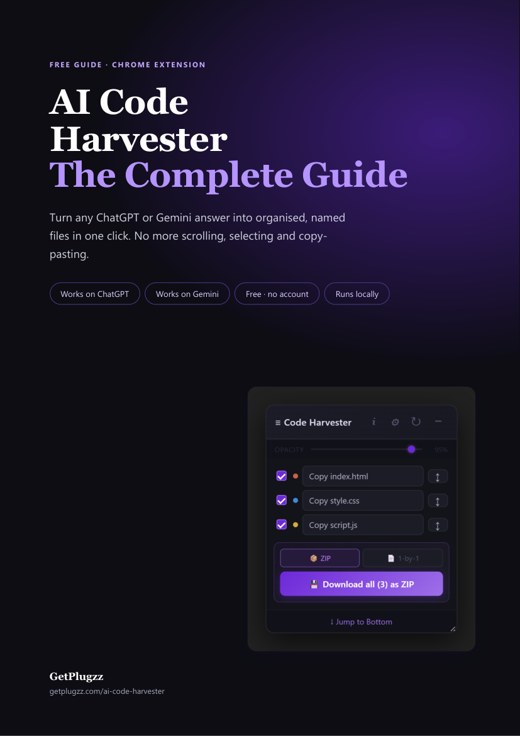
Free PDF guide: code with AI without the scrolling
Every Harvester button explained in 12 pages, with a 3-minute quick start and a bonus: a cheat sheet of 7 habits for coding with AI. Enter your email and the download starts right away.
We add your email to the GetPlugzz newsletter (new posts, tools and extensions). No spam, and you can unsubscribe any time. Privacy







