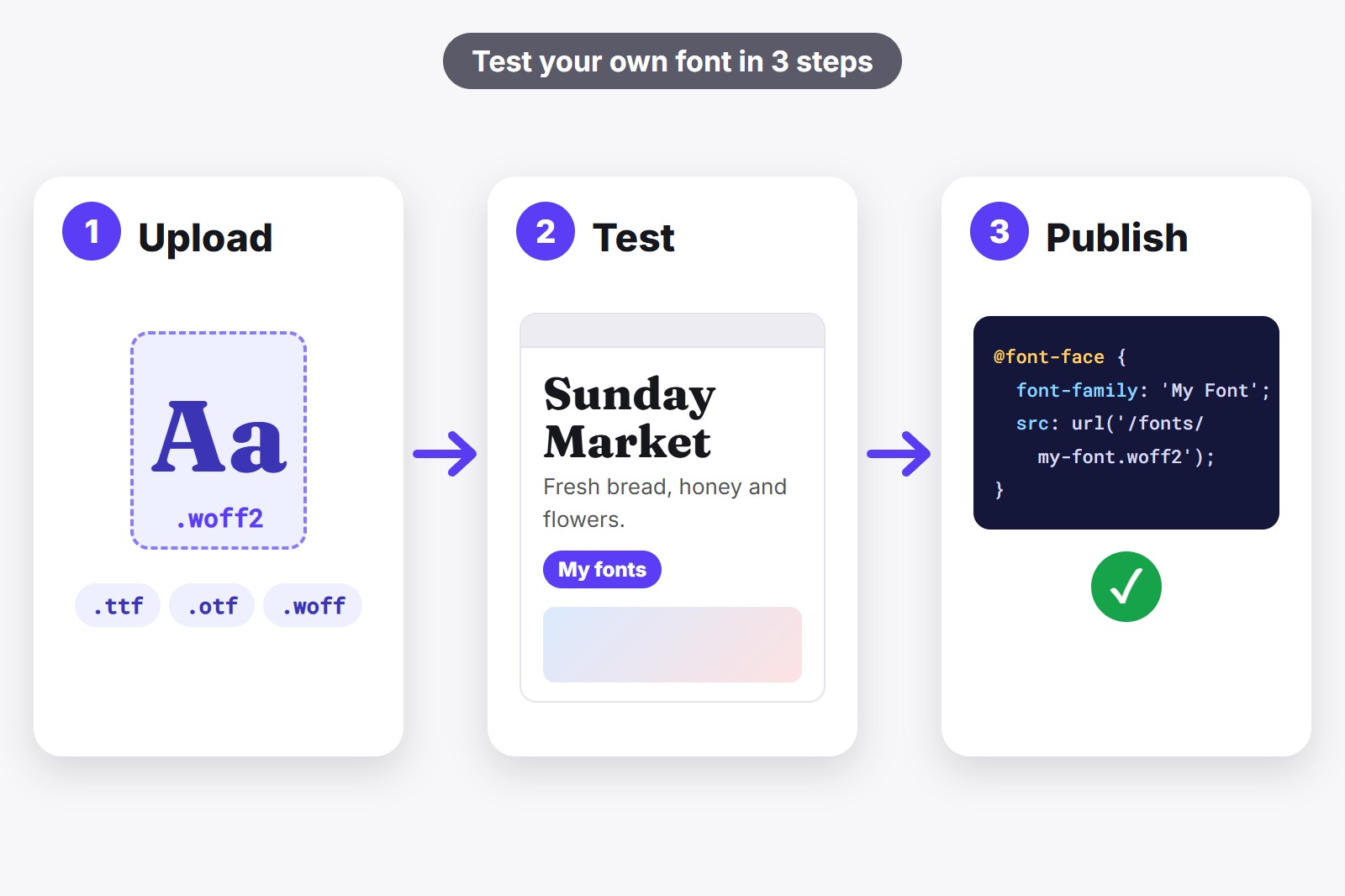
To use a custom font on your website, you upload the font file to your site, tell your CSS where it is with an @font-face rule, and then use it with font-family. Before you do any of that, you can test the font on your real pages: with the free FontMee extension you load a .woff2, .ttf or .otf file from your computer and see it on any website in one click, without changing anything and without uploading anything.
What a custom font is
A custom font is simply a font file that is neither one of the fonts every computer already has nor one of the free fonts on Google Fonts. It might be a brand font from a designer, a font you bought, or one you made. It usually comes as a file ending in .woff2, .woff, .ttf or .otf. No file yet? Our guide to adding Google Fonts covers the free ones.
For websites, .woff2 is the best choice: it is small, so pages load faster, and all current browsers can read it. .ttf and .otf are the formats you use on a computer. They also work in browsers, but the files are bigger. If you only have a .ttf or .otf, that is fine for testing.
Step 1: Test it on a real website first
Uploading a font and writing code just to find out you do not like it wastes an afternoon. FontMee is a free Chrome extension, a small add-on that gives Chrome one new feature, and it lets you try fonts on a live page first. It accepts your own files too. The short video shows the panel.
- Install FontMee. Add it from the Chrome Web Store. It is free and needs no account. Click the puzzle icon in Chrome and pin it, so it is always one click away.
- Open a page of your website and click the FontMee icon. The panel opens beside the page. You can also press Alt + Shift + F. Chrome’s own pages (New Tab, the Web Store, chrome:// pages) cannot be changed.
- Press Upload and choose your font file. You can pick several files at once, up to 6 MB each. FontMee names the font after the file, so my_brand_sans.woff2 becomes my brand sans.
- Find it under My fonts. Your uploads have their own filter and are marked Yours. Hover over one to rename it with the pencil or delete it with the bin.
- Click the font to try it. Under Apply changes to choose Everything, Headings or Body. Use Tune for size, weight and line height, and flip between Original font and FontMee preview to compare.
- Type your own words. In the sample text box, type a real headline, a name or a sentence with your special letters, to see how the font handles them.
Your font files stay in your browser, on your computer. Nothing is uploaded, and the test only changes what you see, so nobody else notices. Want to show the result to a client? FontMee can make a before and after picture: here is how.
Step 2: Put the font file on your website
When you are happy with it, the font has to live on your site, because visitors’ browsers can only load files that are on the internet, not on your computer. Make a folder called fonts and upload the file into it, the same way you upload images: through your hosting’s file manager, through FTP, or through the font upload that your website builder may offer. The folder could look like this:
your-website/
  index.html
  style.css
  fonts/
    my-brand-sans.woff2
    my-brand-sans.ttf
Use simple, lowercase file names with no spaces (my-brand-sans.woff2, not My Brand Sans (1).woff2). It avoids a classic cause of “my font does not show up”.
Step 3: Tell your CSS about the font
Now you write two small things in your CSS, the rules that tell the page how to look. First an @font-face block, which says “there is a font with this name, and its file is here”. Then a normal rule that uses the font.
@font-face {
  font-family: 'My Brand Sans';
  src: url('/fonts/my-brand-sans.woff2') format('woff2'),
       url('/fonts/my-brand-sans.ttf') format('truetype');
  font-weight: 400;
  font-style: normal;
  font-display: swap;
}

body {
  font-family: 'My Brand Sans', sans-serif;
}

h1, h2 {
  font-family: 'My Brand Sans', serif;
}
In plain words: font-family in the first block is a name you invent. src is where the file is, and the second line is a backup in .ttf for older browsers. font-display: swap shows your text in a backup font until the real one has arrived, so visitors never stare at empty space. In the rules at the bottom, the word after the comma (sans-serif) is that backup font, and it is good practice to always add one.
Put this CSS where your site keeps its styles: in style.css, in WordPress under Appearance, Customize, Additional CSS, or in your website builder’s custom CSS box. If your file sits in a different folder, change the path inside url().
The shortcut: let FontMee write it
Back in FontMee, press Copy CSS. For a font you uploaded, FontMee writes your rules and adds a comment with an @font-face line to start from. Change the file name and extension if yours differs, for example to .ttf. Prefer everything ready-made? Press Download self-hosted ZIP. You get a folder with your font file inside fonts, a fonts.css with the @font-face block, a fontmee.css with your rules and a short README. Upload the folder, link the two stylesheets, and you are done.
Four things to check before you publish
- Check the licence. A font file on your computer is not automatically free to put on a website. Many licences cover desktop use only and have a separate web licence. FontMee reminds you with “your own file: check its licence before publishing”. When in doubt, ask where you got the font.
- Check your letters. Type words with your special characters (č, ć, ž, ä, ñ, é) in the sample box. A font can look perfect and still be missing some letters, and then those letters appear in a backup font.
- Keep a backup font. End every
font-familywithseriforsans-serif, so text still looks fine while the font loads. - Keep it light. One or two font files are plenty. Every extra file makes the page a little heavier, so choose
.woff2when you can.
No website yet? Then the font comes second. A site also needs a home to live in, and a builder is the quickest way to get one without code.
Get the extension
FontMee is free, with 1,900+ fonts, Copy CSS in four formats, a self-host ZIP and your own font uploads. No account, no subscription. Add it from the Chrome Web Store, or read the FontMee page first.
Good to know before you start
- A preview changes your screen only. Other visitors see the normal fonts until you upload the file and add the code to your site.
- Your font files stay on your computer. FontMee keeps them in your browser and never sends them anywhere.
- Each file can be up to 6 MB. Most fonts are far smaller. FontMee tells you if one is too big.
- Text inside pictures cannot change. Only real, selectable text does.
- Previewing a font is not a licence. Google Fonts are open source and Fontshare fonts are free to use. For fonts you upload yourself, check the licence first.
FAQ
Upload the font file to your site, add an @font-face rule in your CSS that points to it, then use the font name in a font-family rule. You can test the font first with FontMee, which loads your own file on any page without changing the real site.
Use .woff2 if you can. It is the smallest and every current browser reads it. .ttf and .otf also work in browsers, but the files are larger. In the @font-face block you can list a .woff2 first and a .ttf after it as a backup.
Most often the path inside url() does not match where the file really is, or the file name differs by a letter or a capital. Check that the file opens when you type its address in the browser, make sure the font-family name in your rule matches the @font-face name exactly, and clear your cache. A stronger rule elsewhere can also win: try adding !important after the font name.
No. FontMee keeps uploaded fonts in your browser on your computer and uses them only to show the preview on your screen. Nothing is uploaded to a server.
The CSS goes into Appearance, Customize, Additional CSS, or into your theme’s font settings. Where the font file lives depends on your theme and hosting: many themes and page builders have a place to upload fonts, and otherwise you can put the file in a folder on your hosting. FontMee’s Copy CSS gives you the rules to paste.
Yes. All 1,900+ fonts, every layer, Copy CSS, the self-host ZIP and uploading your own fonts are free, with no account and no limits.
FontMee — Free, 1,900+ Fonts
Made by GetPlugzz. Free, with no account and no tracking.
Free PDF guide: try any font on any website like a pro
Every FontMee button explained in 10 short pages: the 4 layers, the font library, tuning, pairings, before / after, Copy CSS and keeping what you like. Enter your email and the download starts right away.
We add your email to the GetPlugzz newsletter (new posts, tools and extensions). No spam, and you can unsubscribe any time. Privacy







