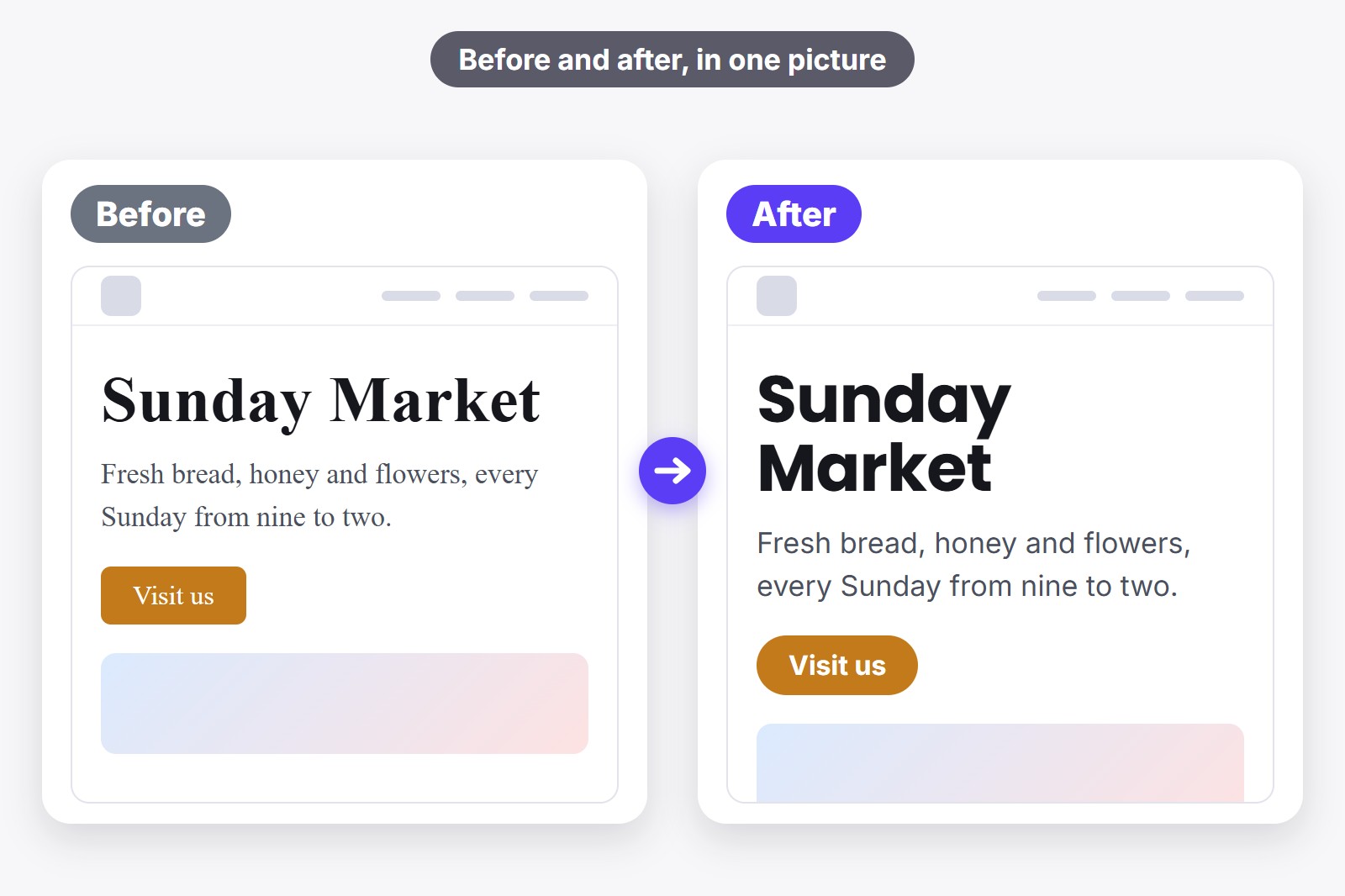
To show a client a new font, open their website in Chrome, try the font on the live page with the free FontMee extension, then press its before/after button. FontMee takes two screenshots, one with the old font and one with the new, and joins them into one picture that you can paste into an email or save as a PNG. Nothing changes on the client’s real website, only on your own screen.
Why a picture on the real site beats a mockup
A mockup is a made-up picture of how a page could look, usually drawn in a design program. It takes time to build, and a font often looks different once the client’s real words, logo and photos sit around it. When you try the font on the real page, the client sees their own site in the new font, and that is the moment they can say yes or no.
It also saves you a round of work. You can try three fonts in ten minutes, send three pictures, and only build the one the client picks.
What you need
- Google Chrome on a computer, because extensions work there.
- The address of the website you want to show: your own, a client’s, or even a competitor’s.
- The free FontMee extension, a small add-on that gives Chrome one new feature. No account, no payment.
Make the before and after in six steps
FontMee shows a font on any page without changing it for anyone else. Here is the whole job, and the short video shows the panel at work.
- Install FontMee. Add it from the Chrome Web Store. It is free and needs no account. Click the puzzle icon in Chrome and pin it, so it is always one click away.
- Open the client’s website and click the FontMee icon. The panel opens beside the page. You can also press Alt + Shift + F. Chrome’s own pages (New Tab, the Web Store, chrome:// pages) cannot be changed.
- Pick the new font. Under Apply changes to choose Everything, Headings or Body, then click a font. Want a heading font and a body font that look good together? Open Font pairings and press Use this pair. Our guide to the best Google font pairings shows some.
- Frame the picture. The picture shows what is on your screen right now, so scroll to the part you want to show, for example the top of the home page, and use Tune for size, weight and line height until it looks right.
- Press Before / after. It is the button with the camera icon, next to the Original font and FontMee preview switch. FontMee brings the tab to the front and takes two screenshots, first with the new font and then with the original. Chrome only allows two screenshots per second, so give it a moment and do not switch tabs.
- Send it. A small window opens with the picture. Use Slider to drag a divider across the page, or Side by side to see both at once. Press Copy image and paste it with Ctrl+V into an email or a chat, or press Save image to get a PNG file. The joined picture carries the labels Before and After.
Show it live in a meeting, or send it later
If the client is on a video call, share your Chrome tab and flip between Original font and FontMee preview at the top of the panel. You can also press Alt + Shift + O to switch, even with the panel closed. FontMee also has a Keep on site button, so your fonts are still there when you open the page again. If the client is not around, the picture does the talking.
Make it easy for the client to say yes
- Show two or three options, not ten. One picture per font is enough.
- Name the fonts in your email, so the client can answer “the second one”.
- Keep the same part of the page in every picture, so the only difference is the font.
- When they choose, go back to FontMee and press Copy CSS. You get the code that makes it real, and our guide to adding Google Fonts shows where it goes.
Four things to check before you send it
- It is only a preview. Nobody else sees the new font until the code is added to the real site. Tell the client, so they do not look for it online.
- Check the real words. Look at headings, buttons and long paragraphs. A font that is lovely in a heading can be tiring in a paragraph.
- Check special letters. If the site uses letters like č, ć, ž, ä or ñ, scroll to some and make sure they show properly. FontMee can filter fonts by script, such as Latin Extended or Cyrillic.
- Check the licence. Google Fonts are open source and Fontshare fonts are free to use, but a font the client already owns can have its own rules. FontMee shows a licence reminder when you copy the code.
No website yet? Then the font comes second. A site also needs a home to live in, and a builder is the quickest way to get one without code.
Get the extension
FontMee is free, with 1,900+ fonts, Copy CSS in four formats, a self-host ZIP and your own font uploads. No account, no subscription. Add it from the Chrome Web Store, or read the FontMee page first.
Good to know before you start
- A preview changes your screen only. The client’s real website stays exactly as it was.
- The picture shows the visible part of the page. Scroll and press the button again for other parts, one picture per part.
- The page must be the open tab. FontMee brings it to the front for the screenshots, so do not switch tabs while it works.
- Fonts are fetched from Google Fonts and Fontshare when you preview them. So you need an internet connection.
- Text inside pictures cannot change. Only real, selectable text does.
FAQ
Open their site in Chrome, try the font with FontMee, then press Before / after. You get one picture with the old and the new font that you can paste into an email or save as a PNG.
No. The font changes only in your own browser while the preview is on. Nothing is uploaded, and the client’s site stays as it was until someone adds the code.
The picture shows the part of the page you can see in the window. To show more, scroll down and make another picture. One picture per section also keeps the details easy to read.
Yes, on any page you can open in Chrome, except Chrome’s own pages such as the Web Store. FontMee only changes how the page looks on your screen.
Yes, if you have the file (.woff2, .ttf or .otf). Upload it in FontMee and try it like any other font. Our guide to using a custom font on your website explains how.
Yes. All 1,900+ fonts, every layer, Copy CSS, the self-host ZIP and uploading your own fonts are free, with no account and no limits.
FontMee — Free, 1,900+ Fonts
Made by GetPlugzz. Free, with no account and no tracking.
Free PDF guide: try any font on any website like a pro
Every FontMee button explained in 10 short pages: the 4 layers, the font library, tuning, pairings, before / after, Copy CSS and keeping what you like. Enter your email and the download starts right away.
We add your email to the GetPlugzz newsletter (new posts, tools and extensions). No spam, and you can unsubscribe any time. Privacy







