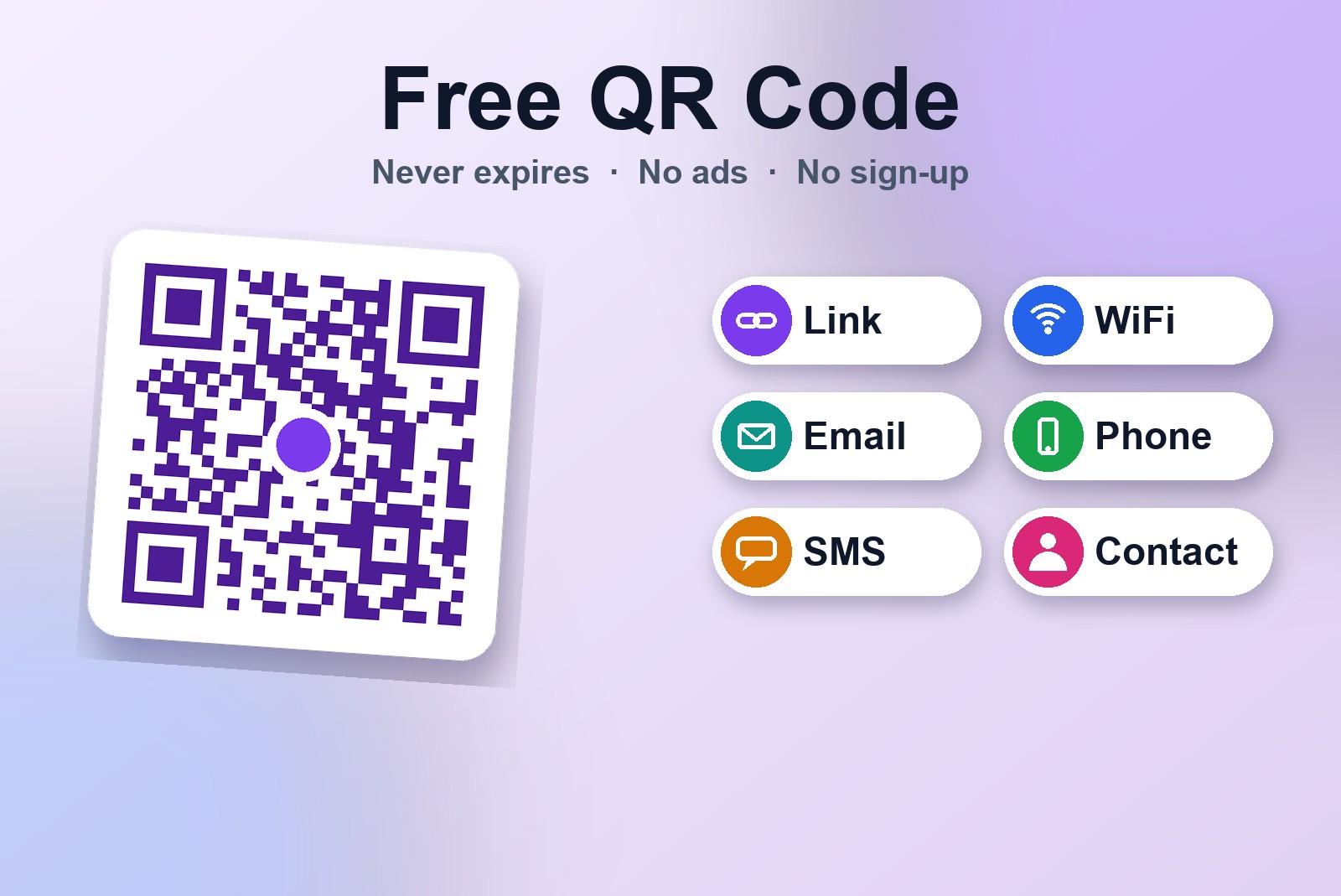
You want a QR code for your website, the menu at your café, or the WiFi at home so guests stop asking for the password. The GetPlugzz QR Code Generator makes one for a link, WiFi, an email, a phone number, an SMS or a full contact card. The code updates as you type, you can change its colors, put your logo in the middle or wrap it in a "Scan me" card, and download it as PNG or SVG. It has no account, no ads, no watermark and no expiry date, and everything is drawn in your browser, so nothing is uploaded.
How to make a QR code in four steps
Open the QR Code Generator and do this:
- Pick a type. Choose Link / Text, WiFi, Email, Phone, SMS or Contact.
- Fill in the details. The QR code updates as you type, so you can watch it change. If you forget the "https://" in a web address, the tool adds it for you.
- Make it yours. Change the colors, add your logo, or wrap the code in a "Scan me" card.
- Download it. Save it as a PNG picture, or as an SVG if you want to print it large without it going blurry.
Nothing to install and nothing to sign up for. If your browser blocks the download, click Allow near the address bar and it goes through.
What can a QR code do?
More than most people think. Depending on the type you pick, scanning the code can:
- Open a link. Send people straight to your website, menu or video.
- Share WiFi. Guests scan the code and join the network without typing the password, and the "Join network?" prompt appears on its own.
- Save a contact. Scanning offers to add the person to the phone's contacts, with no typing.
- Start an email, a text or a call. The message or number is already filled in.
Why some QR codes stop working (the forwarding-address problem)
Some QR sites don't put your link into the code. They put in a short address that points to their own server, which then forwards people to you. It's like renting a mailbox with a forwarding address: it works for exactly as long as you keep paying. The day you stop, the code goes dead, and every flyer and menu you printed goes with it.
This tool does it the other way around. The code holds your link or text inside it, and there is no middleman server that can be switched off. It works for as long as your link does. That's like writing your real address on the envelope yourself.
Make it look like yours
You can change the code color and the background. One rule matters more than any other: keep a strong contrast between the two, because phones need it to read the code. Dark on light always scans best.
You can also add your logo in the middle. Covering part of a QR code makes it harder to read, so the tool raises the error correction to High by itself, which lets the code still scan with a logo on top. If you plan to print it, the "Scan me" card is a nice touch for flyers and business cards.
PNG or SVG: which one should you download?
Think of a photo of a poster versus the stencil the poster was made from:
- PNG is the photo. A normal picture, and perfectly fine for screens, websites and social posts. You can pick 512, 1024 or 2048 pixels, and 1024 is a good size for print.
- SVG is the stencil. It stays perfectly sharp at any size, so pick it for posters, flyers and business cards.
When you'd actually need this
- A menu or a price list on a café or restaurant table.
- WiFi for guests at home, in an apartment you rent out, or at the office.
- A business card that saves your details straight into someone's phone.
- A flyer or a poster that sends people to your website or event page.
- A link you'd rather not dictate, like a long video or form address.
Good to know before you start
- The code is static: the content is part of the picture, so you can't edit it later or see how many people scanned it.
- A Wi-Fi code contains the password in readable form for anyone who has the image.
- Dark code on a light background scans best. Don't invert the colours, and scan it with a phone before you print.
- A logo in the middle is fine if it stays small; the tool raises error correction to High for you.
- Shorter links make simpler codes that are easier to scan, especially when printed small.
FAQ
Yes. There is no account, no ads and no watermark on your code.
No. The code holds your link or text inside it, and there is no middleman server that can be switched off, so it works for as long as your link does. Some other QR sites give you codes that stop working unless you pay. These do not.
No. The code is drawn in your browser. Your link, WiFi password or contact details never leave your device.
Yes. Add your logo in the Style section. The tool raises the error correction by itself so the code still scans with a logo in the middle.
PNG is a normal picture and is fine for screens. SVG stays perfectly sharp at any size, so pick it for posters, flyers and business cards.
Free QR Code Generator — No Ads, Never Expires
QR codes for links, WiFi, email, phone, SMS and contacts. Built by GetPlugzz, drawn entirely in your browser.







