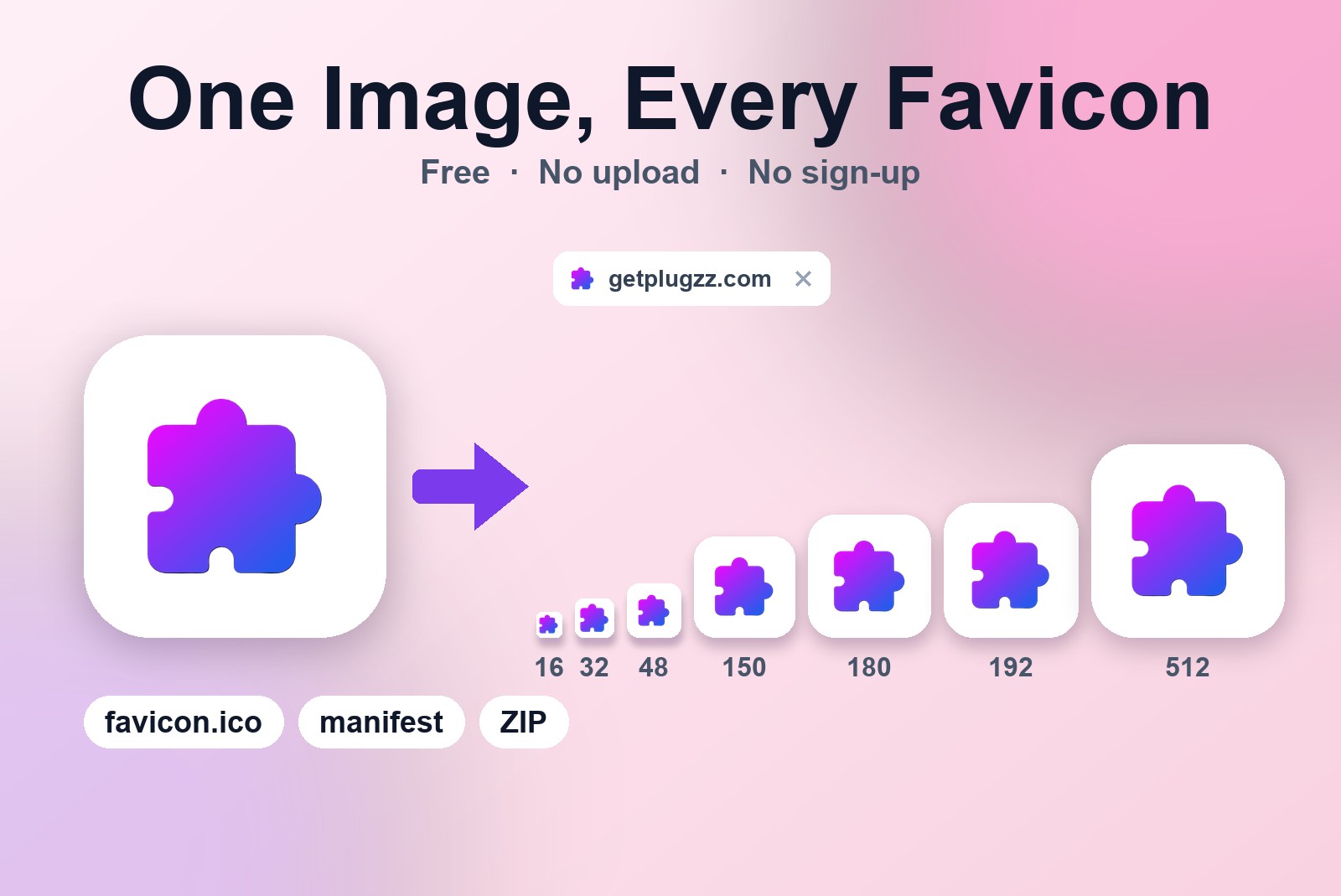
You have a logo, and your website needs a favicon: that tiny picture in the browser tab. Easy, until you find out that browsers, iPhones, Android phones and Windows each want their own size and their own file. The GetPlugzz Favicon Generator does all of that from one image. Drop your logo in, press one button, and you get favicon.ico, an Apple touch icon, Android icons, a Windows tile, a manifest file and the code to paste into your site. It runs in your browser, so there is no account, no watermark and nothing is uploaded.
How do you make a favicon in every size from one image?
Open the Favicon Generator and do this:
- Add an image. Drop your logo into the box or click to pick one. A square picture of at least 512 × 512 pixels works best. Anything else is cropped to a square from the center.
- Check the preview. If your image has a see-through background, it is kept, which is perfect for logos. You'll see every size that will be made.
- Download. Press Download All (ZIP) to get every size, then paste the code shown into the head of your site. There's a Copy button for the code.
Nothing to resize by hand, nothing to install. If your browser blocks the download, click Allow near the address bar and it goes through.
Why does one favicon need so many sizes?
Think of a photo booth that prints the same picture as a tiny sticker, a passport photo and a poster. It's the same face, but each place has its own frame. A favicon works the same way. Your logo shows up in different places, and each place asks for a different size:
- 16 × 16 and 32 × 32: the browser tab. The 32 one keeps it sharp on high-resolution (retina) screens.
- 48 × 48: Windows shortcuts.
- 150 × 150: the Windows tile.
- 180 × 180: the Apple touch icon, which iPhones and iPads use when someone adds your site to the home screen.
- 192 × 192 and 512 × 512: Android, for the home screen and the splash screen (also used for web apps).
What is in the ZIP file?
The tool makes all of these for you and packs them into one file:
- favicon.ico: the classic icon shown in browser tabs. It's a real multi-size file with the 16, 32 and 48 versions inside.
- favicon-16x16.png, favicon-32x32.png and favicon-48x48.png: the small sizes.
- apple-touch-icon.png: the icon for iPhones and iPads.
- android-chrome-192x192.png and android-chrome-512x512.png: the icons for Android.
- mstile-150x150.png: the Windows tile.
- site.webmanifest: tells browsers which icons to use.
- head-snippet.html: the code to paste, saved as a file.
Where do the files go?
Upload the files to the main folder of your website, then paste the code from the tool into the head of your pages. That code is what tells the browser where to find each icon. Two small tips: open site.webmanifest and add your site's name, because it is left empty, and change the theme color if you want something other than white.
No website to upload them to yet? Our guide to launching your first website covers the domain, the hosting and the pages. If you would rather not start from a blank page, an AI website builder (paid link) from Bluehost includes hosting, so you would have somewhere to put the files.
Which image works best?
- Square and big. Start with at least 512 × 512 pixels. The tool shrinks it to every size, so you never have to resize anything yourself.
- Centered. A picture that isn't square is cropped to a square from the center, so keep the important part in the middle.
- Transparent is fine. If your logo has a see-through background, the icons keep it.
- Simple wins. At 16 pixels there is very little room, so a bold shape or a single letter reads better than a detailed drawing.
One thing to know: one image at a time
The generator makes every size from one image at once. It doesn't process many different logos in one go. If you have another site to do, press Choose a different image and run it again, which takes a few seconds.
Good to know before you start
- A picture that is not square is cropped from the centre. Use a square image so nothing is cut off.
- Give the Apple icon a solid background: iPhones fill transparent areas with black.
- At 16×16 pixels fine detail disappears, so a simple shape works best.
- Browsers and Google keep old favicons for a while; a new one can take days to show up.
- Fill in your site name in site.webmanifest and upload all the files to the main folder of your site.
FAQ
Yes. There is no account and no watermark.
No. The icons are made in your browser and your image never leaves your device.
Start with a square image of at least 512 × 512 pixels. The tool shrinks it to every size you need, so you do not have to resize anything yourself.
Yes. If your logo has a see-through background, it stays see-through in the icons.
Upload them to the main folder of your website, then paste the code from the tool into the head of your pages.
Free Favicon Generator — All Sizes, One Upload
One image in, every icon size out: ico, Apple, Android, Windows and the code to paste. Built by GetPlugzz, made entirely in your browser.







