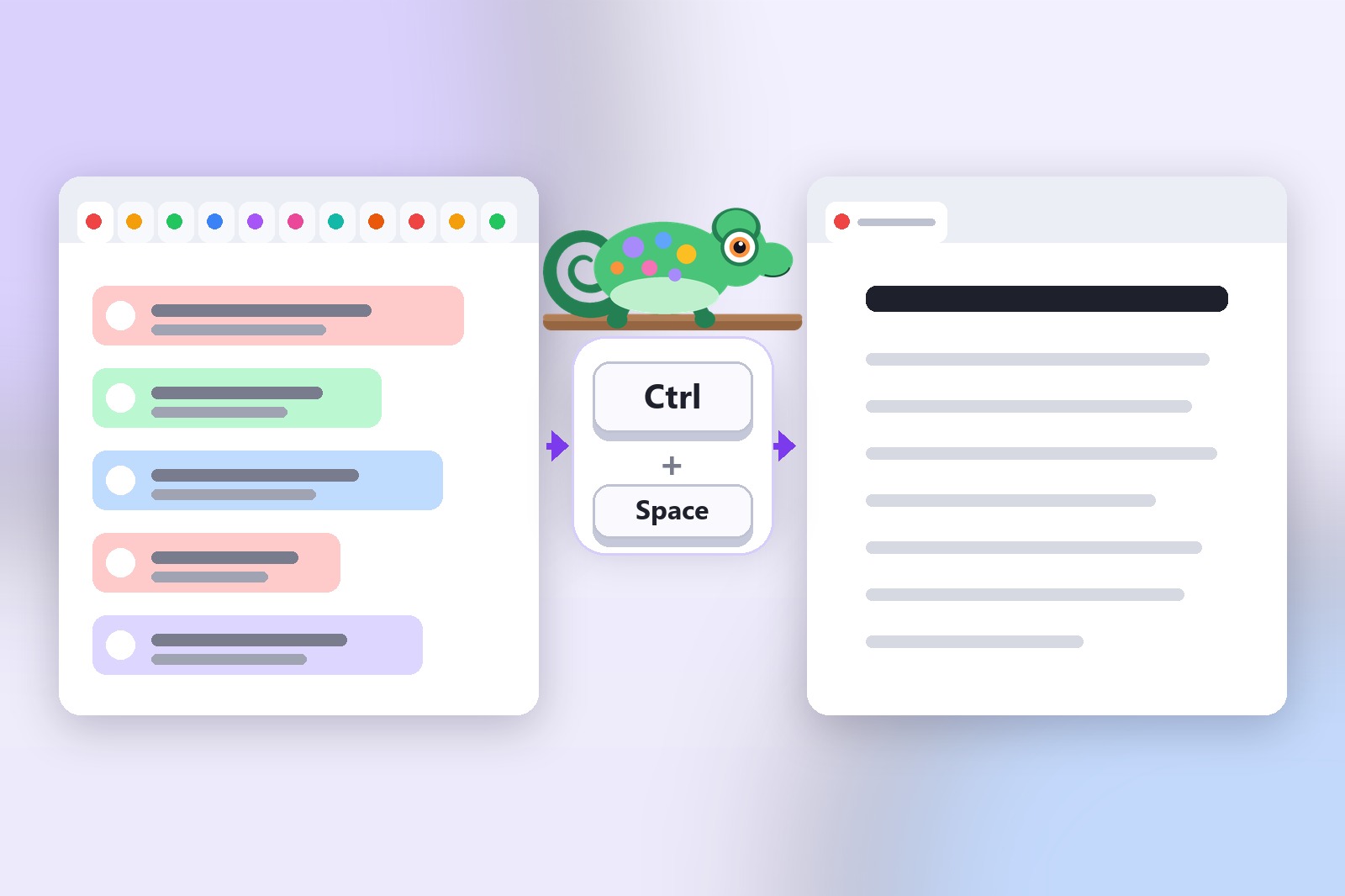
A browser panic button is a keyboard shortcut that instantly clears your screen — replacing everything you have open with something completely neutral. One press to hide, one press to restore. Nothing is closed, nothing is lost. It's just hidden.
What is a browser panic button?
The concept isn't new. IT departments in secure environments have used screen-clear shortcuts for years. But for everyday Chrome users, there's never been a clean, simple way to set one up — until now.
The goal is speed. A panic button only works if it fires before anyone sees your screen. That means zero hesitation — no fumbling for the right key, no waiting for a window to animate. Instant.
Why the usual shortcuts aren't fast enough
Most people reach for one of these when they need to clear their screen fast:
- Alt+Tab — switches windows, but your browser is still visible in the taskbar. Anyone glancing at your screen can still see the tab titles.
- Windows+D — shows the desktop, but takes a full second to animate on most machines. On a slow computer, that second feels very long.
- Minimising Chrome — same animation problem, and it's a two-step action on most setups.
- Locking the screen — the most nuclear option. Good if you're leaving the desk, but overkill (and too slow) if someone just walked past.
None of these hide your tabs while keeping them accessible. You either close everything and lose your place, or you're just hoping the animation was fast enough. A dedicated browser panic button solves both problems at once.
The 60-second setup
Here's exactly how to get a working panic button in Chrome. The whole thing takes about a minute.
- Install Digital Chameleon. Add Digital Chameleon from the Chrome Web Store. Free, no account, no permissions you don't need.
- Open the extension settings. Click the puzzle piece icon in your Chrome toolbar, then click Digital Chameleon. The settings panel opens.
- Set your panic shortcut. The default is
Ctrl + Space. You can change it to any combination that feels natural — something your fingers find without looking. - Choose your decoy page. Pick what appears when you hit the shortcut. A blank tab works. A Google Doc looks more convincing. A company intranet is even better. Whatever fits your environment.
- Test it once. Open a few tabs, hit the shortcut. Watch them all disappear. Hit it again. They're all back. You're done.
Choosing the right hotkey and decoy
The shortcut you pick matters more than you'd think. It needs to be something you can press reflexively — no looking down at the keyboard, no thinking. A few things that work well:
Ctrl + Space— the default, easy to reach with one handCtrl + Shift + H— memorable (H for hide)F9orF10— function keys are fast and rarely used by other apps
Avoid shortcuts that Chrome already uses — Ctrl + W, Ctrl + T, Ctrl + Tab — or you'll trigger the wrong thing under pressure.
For the decoy page, think about who might glance at your screen. If you're in an office, a work tool or an empty Google Doc is ideal. If you're at home, a blank page is fine. The point is that whatever appears looks intentional, not suspicious.
How it works under the hood
When you press the shortcut, Digital Chameleon doesn't close your tabs — it covers all of them with the decoy at once. Your pages stay open underneath, untouched. When you press the shortcut again, the cover is removed and every page is exactly where you left it, including scroll position.
It also mutes any audio playing across all tabs the moment you trigger it. No sound leaking while the screen looks innocent. Everything happens locally — nothing is sent anywhere, no tab data is logged. If you want to understand more about how the tab hiding actually works, that's covered in detail in the companion article.
Worth knowing: the whole operation — hiding all tabs, muting audio, showing the decoy — takes under 200ms. Faster than a blink. Faster than anyone walking past can register.
Who a browser panic button is for
It is not only for the obvious reasons. Anyone who sometimes has something on screen that is nobody else's business ends up using it more than they expect:
- People in open offices and shared spaces — a colleague stops by while a salary sheet, a private message or a medical page is open
- Students and anyone on a shared computer — private tabs go out of sight in an instant when someone sits down next to you
- Anyone about to share their screen — personal tabs disappear with one press before the call starts
- People planning a surprise — a gift, a trip, a party. We wrote a whole guide on buying a surprise gift online without getting caught
- Families sharing one laptop — tabs and sound vanish together, so nothing is left playing in the background
If any of that sounds familiar, 60 seconds of setup is all it takes.
Get Digital Chameleon
It's free, takes 60 seconds to set up, and works on any version of Chrome. Once it's configured, you'll forget it's even there — until the moment you actually need it.
Good to know before you start
- It covers the page, not the browser: the address bar and the tab strip stay visible, and in image mode the tab icon stays too.
- Chrome's own pages are not covered (chrome://, the new tab page, the Chrome Web Store). Close or switch them.
- The default shortcut can clash with your system (Spotlight on Mac, input-language switching). Change it at chrome://extensions/shortcuts.
- Protection stays on after you restart the browser until you turn it off.
- A decoy website can't load if that site refuses to be shown inside another page. Choose the separate-window option or another site.
- Sound and pop-up notifications from other apps are not hidden.
FAQ
Just hides them. Every tab is covered by the decoy at once, but nothing closes or reloads. Press the shortcut again and every page is exactly where you left it, including scroll position.
Yes. You can set any URL as the decoy — a blank tab, a Google Doc, a company intranet page, or anything else that fits your situation.
It mutes instantly across every tab the moment you trigger the shortcut, so nothing keeps playing while the screen looks innocent.
Yes — completely free, every feature included. No account, no ads, nothing to upgrade.
No. Everything happens locally in your browser — nothing is sent anywhere, no tab data is logged.
Digital Chameleon — Free, Ready in 60 Seconds
One shortcut hides every tab instantly. Press again to bring them all back.







