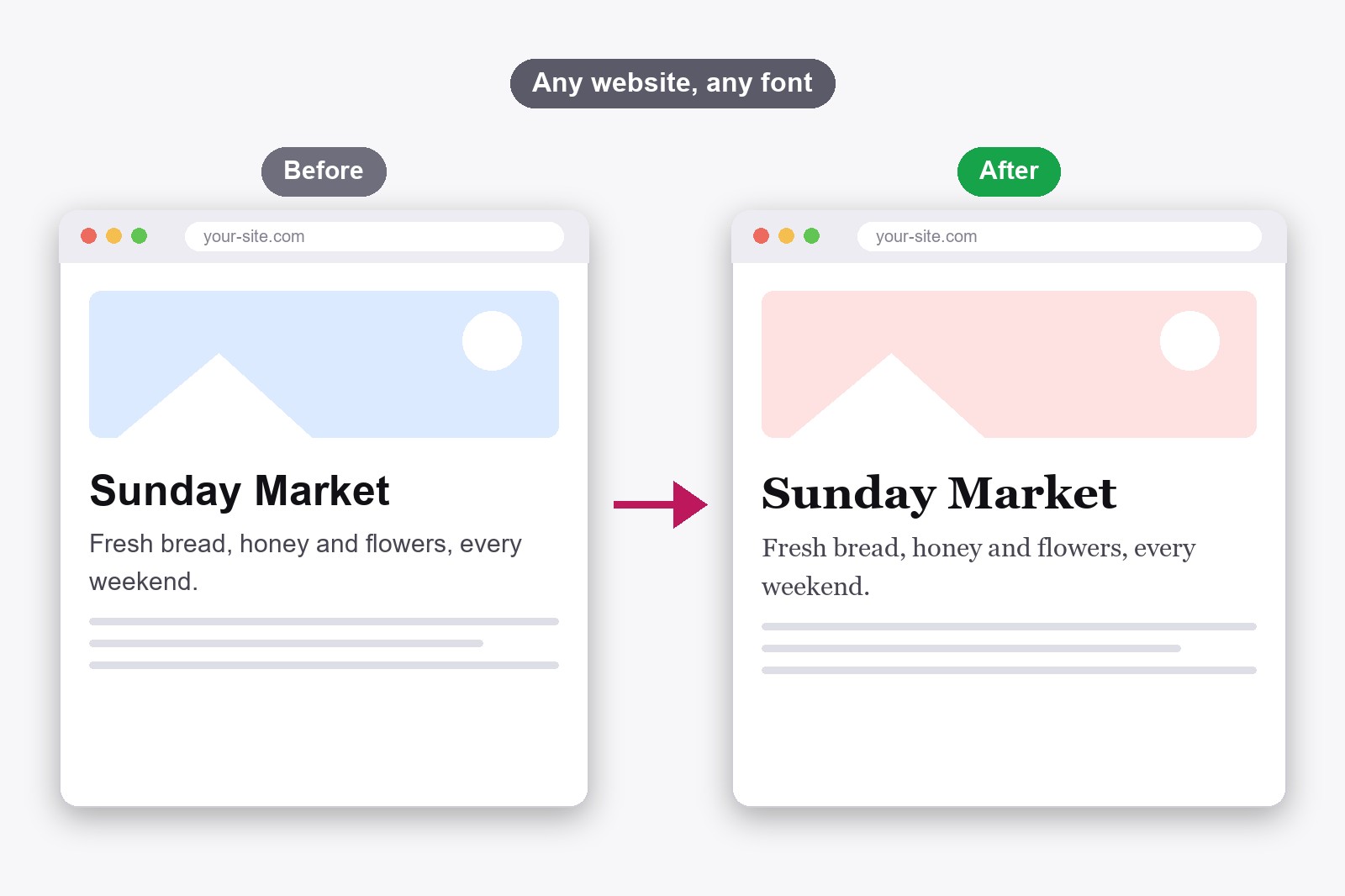
To change the font on any website in Chrome, install the free FontMee extension, open it on the page, choose Everything and click a font. The page switches at once, on your screen only. Chrome’s own font setting rarely does the job, because most websites pick their own font and ignore yours.
Why Chrome’s own font setting usually changes nothing
Chrome has a font setting: Settings → Appearance → Customize fonts. It sets the default font for the web. The catch is that a website only uses your default when it does not name a font itself, and almost every modern site does. So you change the setting, reload the page, and it looks exactly the same.
The other do-it-yourself route is the developer tools, a hidden panel made for web designers (right-click a page and choose Inspect). There you can edit the font of one element by hand. It works, but you have to find the right line in a wall of code, it covers only the piece you clicked, and everything is gone the moment you refresh.
The easy way: FontMee
FontMee is a free Chrome extension, a small add-on that gives the browser one new feature. It opens as a panel beside the page and lets you try any of 1,900+ fonts on the real website with one click. Think of it as putting tinted glasses on the page: it looks different to you, and nothing changes for anyone else. The video shows the panel in action.
Changing the font is only one thing it does. It can also name the font a page already uses (here is how), copy ready-made CSS, upload your own font files and suggest font pairs that look good together.
How to change the font on a website, in six steps
- Install FontMee. Add it from the Chrome Web Store. It is free and needs no account. Click the puzzle icon in Chrome and pin it, so it is always one click away.
- Open a normal website and click the FontMee icon. The panel opens beside the page. You can also press Alt + Shift + F. Chrome’s own pages (New Tab, the Web Store, chrome:// pages) are off limits to every extension, so use a regular site.
- Choose what to change. Under Apply changes to pick Everything (the whole page), Headings, Body (the paragraphs) or Element, where you click one single thing on the page.
- Click a font. The page changes at once. Use the arrow keys ↑ ↓ to flip through the list, press Random for a surprise, or filter by Sans, Serif or Mono. The search box finds a font by name.
- Tune it. Open Tune to set size, weight, line height and letter spacing with sliders. Switch between Original font and FontMee preview (or press Alt + Shift + O) to compare.
- Keep it or drop it. Keep on site re-applies your choice every time you visit that site. Reset all puts the page back exactly as it was.
Make a page easier to read
Most people change a font for comfort, not for design. A few things are worth trying. Make the text a little bigger and give the lines more breathing room (that is the line height). Try one plain sans font and one serif font on the same article, because there is no single best font for everybody. And skip decorative display fonts for long reading, they are made for headlines. If a change feels worse, one click on Original font brings the site back.
Does the change stay?
By default it lasts until you reload or close the tab, so nothing gets stuck. If you read the same site every day, switch on Keep on site and FontMee applies your font again on every visit, on that site only. Switch it off any time. The change is stored in your own browser, so other visitors never see it.
Is it your own website? Then the preview is only the first half of the job. When you find the font you like, press Copy CSS and paste the rules into your site’s stylesheet (WordPress calls the place Additional CSS), and every visitor sees it. A site also needs a home to live in, and a builder is the quickest way to get one without code.
Get the extension
FontMee is free, with 1,900+ fonts, every layer, Copy CSS and your own font uploads. No account, no subscription. Add it from the Chrome Web Store, or read the FontMee page first.
Good to know before you start
- It changes your screen only. Other visitors see the normal font, and the site itself is never touched.
- Latin, Central European, Cyrillic, Greek and Vietnamese letters work. Pick the script in the panel. Arabic and Asian text keeps its original font.
- Text inside pictures cannot change. Only real, selectable text does.
- Fonts are fetched from Google Fonts and Fontshare when you preview them. So you need an internet connection.
- Previewing a font is not a licence. If you plan to use a font on your own site, check its licence first.
FAQ
Install a font extension such as FontMee, open it on the page, choose Everything and click a font. The page changes immediately. Chrome’s own font setting only changes the default, and most websites ignore it.
Chrome lets you set default fonts under Settings, Appearance, Customize fonts. It only affects pages that do not choose their own font, which is rare. The developer tools can change one element, but the change disappears when you refresh.
No. FontMee changes what your own browser shows, nothing else. The website itself, and everyone else’s view of it, stays the same.
Not by default. Turn on Keep on site and FontMee re-applies your font every time you visit that site. Reset all removes it.
Yes. Choose Headings, Body or Element, and click the one thing you want to change.
Yes. All 1,900+ fonts, every layer, Copy CSS and uploading your own fonts are free, with no account and no limits.
FontMee — Free, 1,900+ Fonts
Made by GetPlugzz. Free, with no account and no tracking.







