The quick answer
- Open the free EXIF Remover, add your photo and look at the line under its name. If the photo has a location, you will see Location found with two numbers (the coordinates) and a view on map link. Click it and the spot opens in Google Maps.
- The same line also shows the camera and the date the photo was taken. Nothing is uploaded, because the check runs inside your browser.
- It works on JPG, PNG and WebP files. HEIC photos from newer iPhones are not supported (see the note below). If the line says No hidden data found, the file has no location. The usual reasons are further down.
- The numbers show where the phone was, to within a few metres at best. They do not always show the thing in the picture.
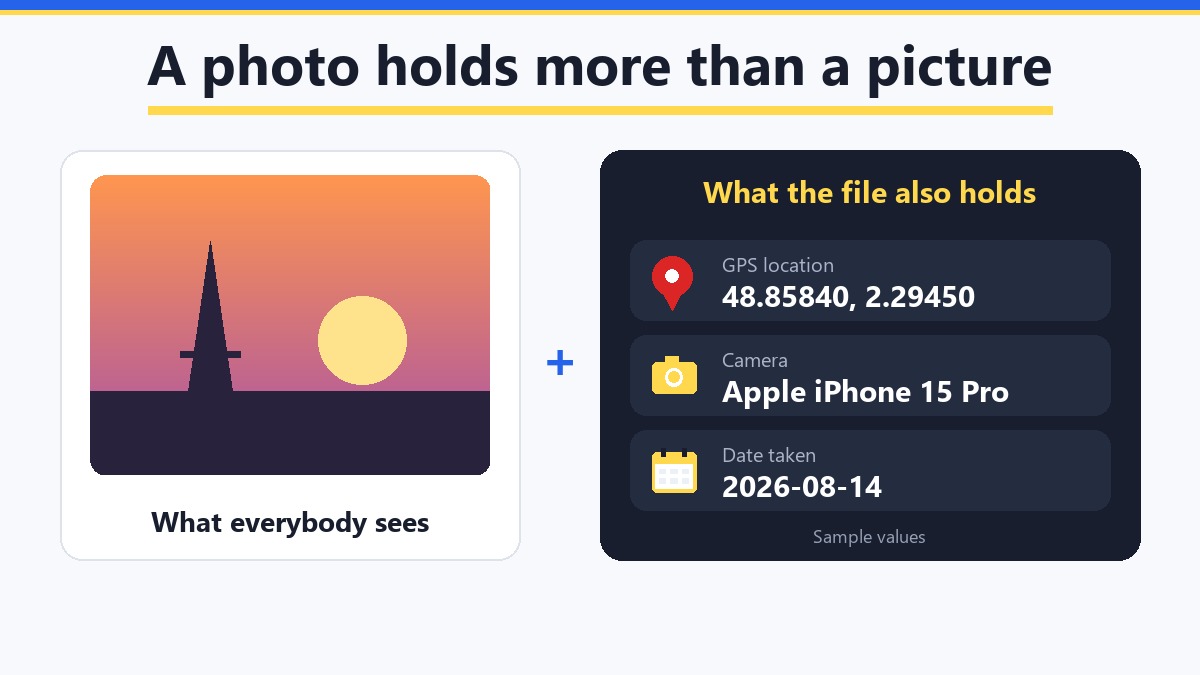
Think of a photo as a shop window and the file as the shopping bag. The window is what everybody sees. But tucked inside the bag is a receipt, and on many phone photos the receipt has an address on it. That receipt is called EXIF data: a block of small facts that the camera writes into the file. One of them can be the GPS location where you took the picture.
How do you see the GPS location of a photo?
You do not need an app or an account. Here are the steps with our free tool:
- Open the EXIF Remover. It is on this page: GetPlugzz EXIF Remover.
- Add the photo. Drop it into the box or click the box and pick the file. Use the original photo from your phone or camera, not a screenshot of it.
- Read the line under the file name. With a location it says Location found, followed by the coordinates, the camera and the date.
- Click view on map. Google Maps opens at that spot.
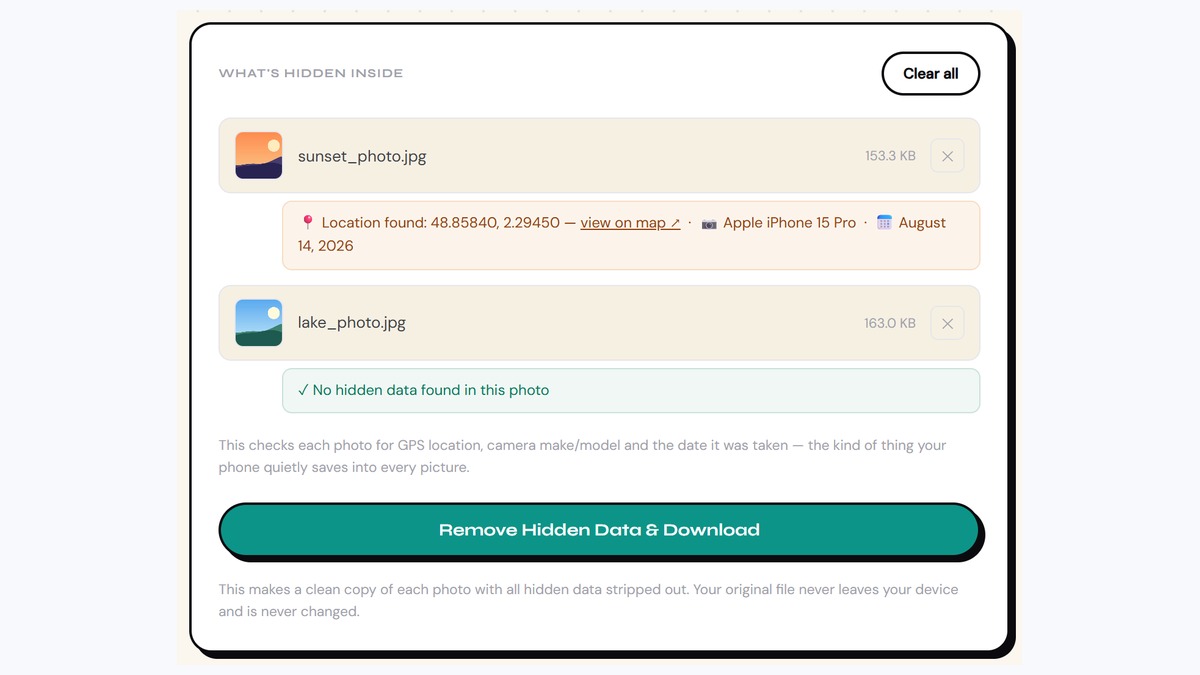
Nothing leaves your device. The photo is read inside your browser, so it is safe to check a private picture. That matters, because the whole point is a photo you may not want strangers to read.
What do the GPS numbers mean?
The tool shows two numbers, for example 48.85840, 2.29450. They are the same kind of numbers a map uses:
- The first number is the latitude. It says how far north or south of the equator the spot is.
- The second number is the longitude. It says how far east or west it is.
- A minus sign means south or west. So
-33.86, 151.21is south of the equator, and east, because the longitude has no minus.
You never have to type them yourself, because the view on map link does it for you. But if you want to search the spot in a map app, paste the two numbers into the search box. Google Maps accepts decimal degrees like 41.40338, 2.17403, with the latitude first and a dot, not a comma, in each number.
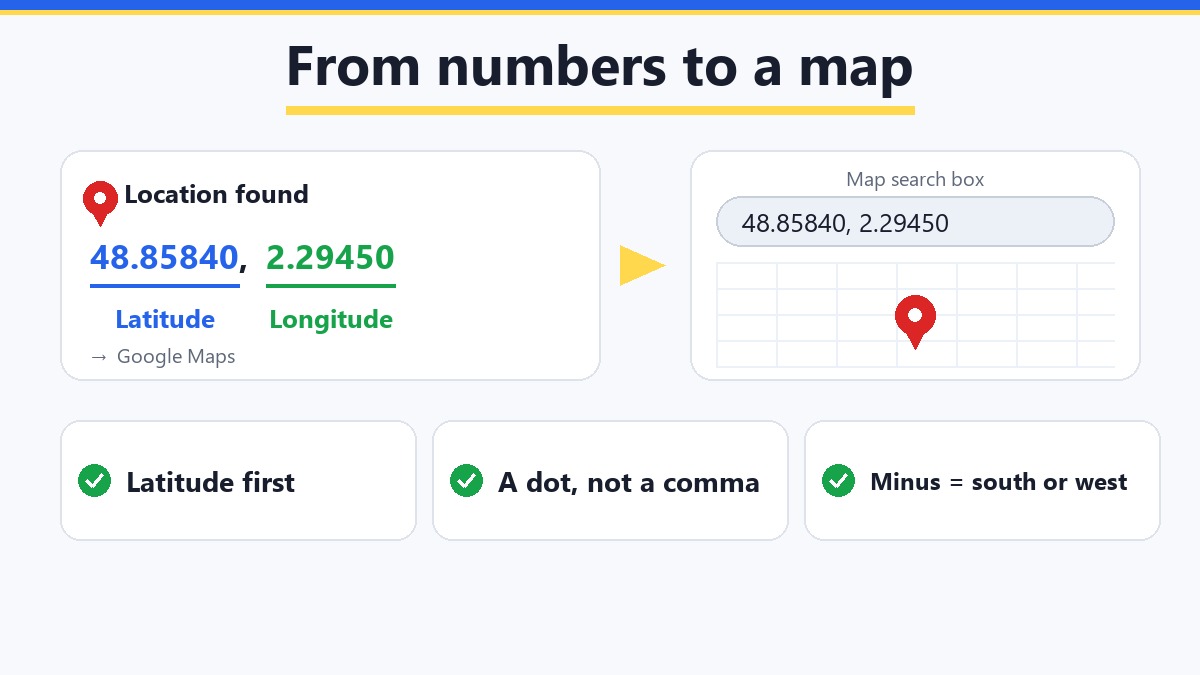
The sample photo in our screenshot points to 48.85840, 2.29450, which is the Eiffel Tower in Paris. It is a sample picture, but it shows how precise the pin can be.
How accurate is a photo's GPS location?
Better than you may expect, but it is not magic. The official US GPS website says a smartphone is typically accurate to within about 5 metres (4.9 m, or 16 feet) with a clear view of the sky, and that it gets worse near buildings, bridges and trees. Indoors it can be much less exact.
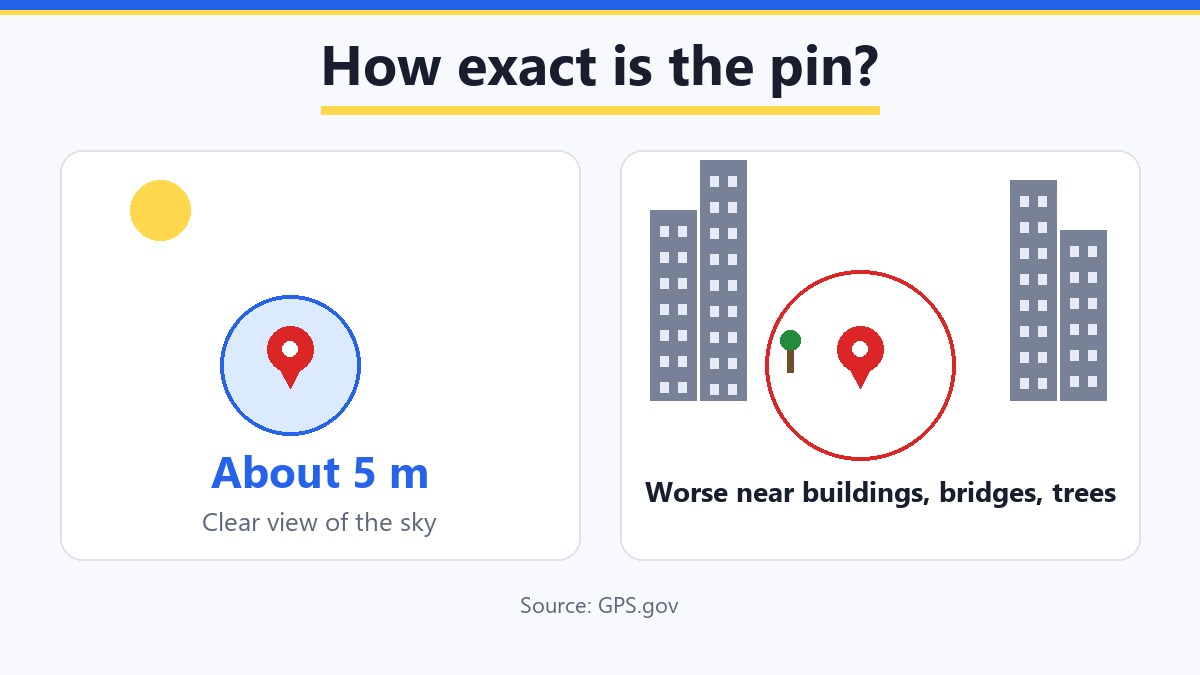
There is one more thing to keep in mind. The coordinates show where the camera was, not what it was pointing at. A photo of a mountain taken from a car park will point to the car park.
Other ways to see where a photo was taken
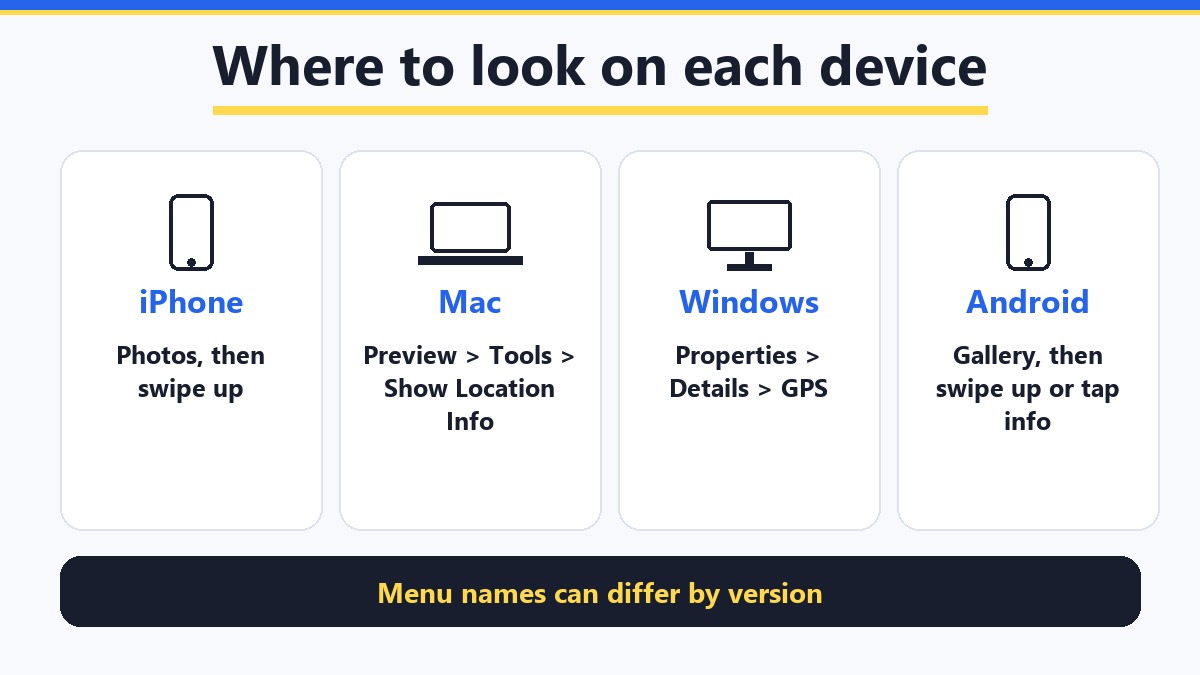
Your computer and phone can also show the location, but the menus are different on every system, and they change between versions, so treat these as a guide:
- iPhone: open the photo in Photos and swipe up. Apple's guide says that swiping up shows the photo's details and the place, if the photo has location data. On some versions of iOS the map is missing, in which case use the checker above.
- Mac: open the photo in Preview and choose Tools, then Show Location Info. If it is greyed out, the photo has no location. In the Photos app, double-click the photo and scroll down to Places.
- Windows: right-click the file, choose Properties, then the Details tab, and scroll down to the GPS section for latitude and longitude. If that section is empty, there is no location.
- Android: open the photo in your gallery app or Google Photos and swipe up, or tap the info button. The details show a place or a map when the photo has one. The names differ by phone brand.
The advantage of a checker like ours is that it works the same everywhere and shows the actual numbers, which gallery apps often hide behind a small map.
Why does my photo show no location?
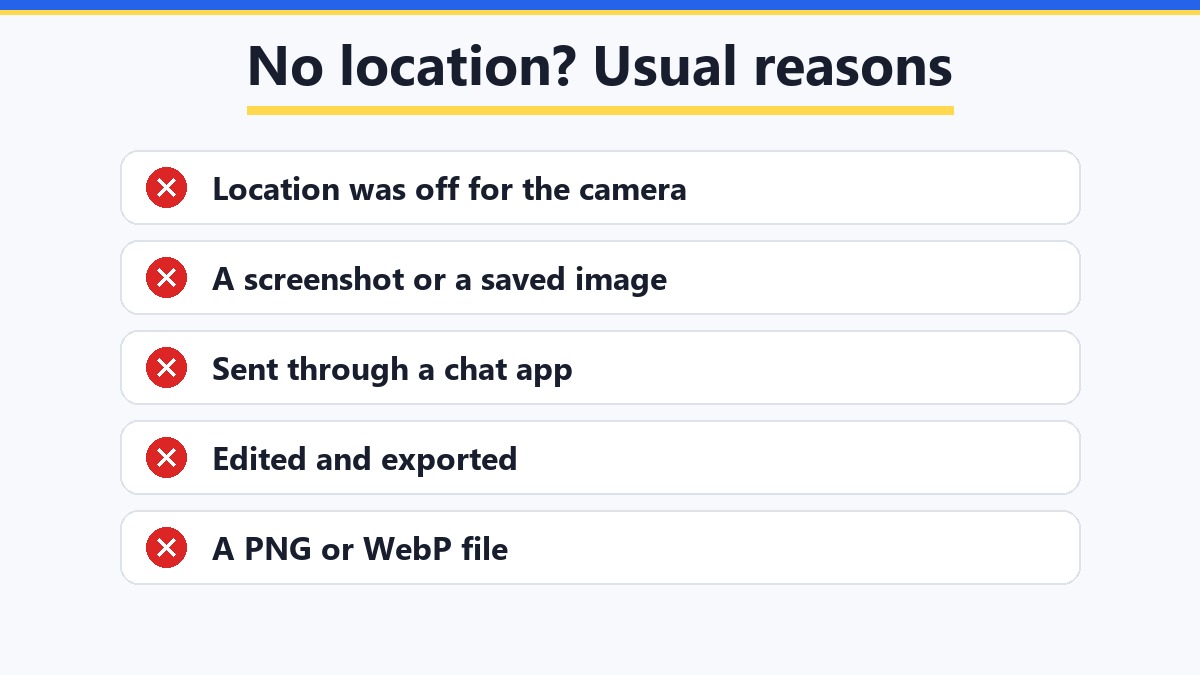
If the tool says No hidden data found, the location is not in that file. These are the usual reasons:
- Location was off for the camera. If the camera app was not allowed to use location when you took the photo, nothing was saved.
- It is a screenshot or a saved image. A screenshot is a new picture made by the screen, so it has no camera location. Many images saved from websites have lost theirs as well.
- It went through an app that cleans photos. Chat apps often shrink a photo when you send it as a picture and drop the location in the process. Sent as a file or by email it usually stays, but this differs between apps and changes over time, so do not count on it.
- It was edited and exported. Some editors and export settings leave the hidden data out.
- It is a PNG or WebP file. These formats carry a location far less often than a photo straight from a phone camera, so finding nothing in them is common.
A note about iPhone (HEIC) photos
Recent iPhones can save photos in a format called HEIC. The tool does not open HEIC files. Converting them to JPG with our Image Converter removes the hidden data on the way, so that will not show you the location either. Instead, use the swipe-up method in Photos on the phone, or switch the camera to the most compatible format (in Settings, under Camera and Formats) so that new photos are saved as JPG.
Making something with your pictures?
Creative Fabrica is a marketplace of fonts, graphics and other design assets (they say 12 million+). Handy when a picture needs a headline font, a frame or a background. Check the licence of each item before you use it commercially.
Browse Creative FabricaThis is a paid link. If you buy through it, we may earn a commission at no extra cost to you. Full disclosure →
Check many photos at once
You can add up to 25 photos in one go. Each one gets its own line with its own result, so you can see at a glance which photos carry a location and which are clean. This is handy before you post a whole album or send a folder to someone.
Found a location you do not want to share?
Then remove it before you post the photo. In the same tool, press Remove Hidden Data and Download. You get a clean copy, and your original is never changed. The full steps, and what else is cleaned, are in our guide to removing EXIF data from a photo. More small helpers like this one are in the free tools list.
Good to know before you start
- The check shows location, camera and date only. Other hidden data in the file is not listed, but cleaning removes all of it.
- It reads JPG, PNG and WebP. HEIC is not supported.
- The coordinates show where the camera was. They may not match the thing you photographed.
- No location does not mean something is wrong. Location may have been off, or the photo may have passed through an app that cleans it.
- Use it on photos you are allowed to look at. Your own photos, or pictures someone has sent you on purpose.
FAQ
Open the free GetPlugzz EXIF Remover, add the photo and read the line under its name. If there is a location, it shows the coordinates and a link that opens the spot on a map. It runs in your browser, so the photo is not uploaded.
Yes, usually. On iPhone swipe up in the Photos app, on Android open the photo details in your gallery or Google Photos, on a Mac use Show Location Info in Preview, and on Windows look at the GPS section on the Details tab of the file properties. Menu names change between versions.
The file has none. Location may have been off in the camera, it may be a screenshot, or the photo may have been re-saved or sent through an app that removes it. PNG and WebP files also carry a location far less often than photos straight from a phone camera.
The official GPS website says smartphones are typically accurate to within about 5 metres with a clear view of the sky, and less accurate near buildings, bridges and trees. The point shows where the camera was, not necessarily what is in the picture.
Often there is nothing to find. Apps like these commonly shrink photos and drop the hidden data, although a photo sent as a file can keep it. If you have the original from the sender, check that file instead.
Yes. You can add up to 25 photos, and each one shows its own result.
No. The check happens in your browser and the photo never leaves your device.
Free EXIF Remover — See and Remove Hidden Photo Data
Drop in a photo, see the hidden location, camera and date, then clean it with one click. Built by GetPlugzz, made entirely in your browser.