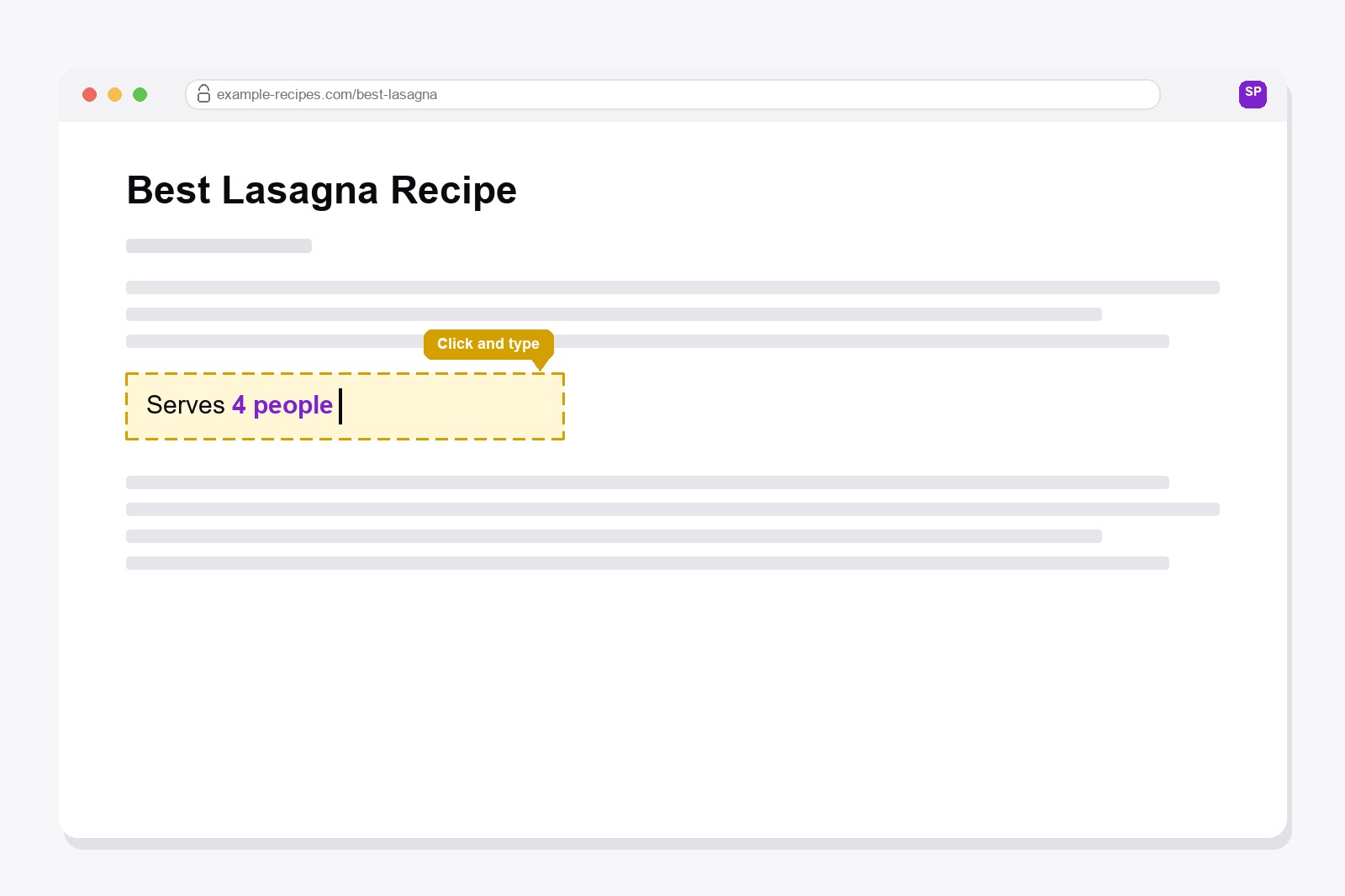
You need a printout of a page, and it is almost right. A price that changed since the page was written. A typo in the title. A name you would rather not have on paper. A line you want to shorten, or a note you want to add for a colleague. It is not your website, so you cannot edit it, and copying the page into a document usually wrecks the layout.
There's a free tool for exactly this: Smart Print Pro
Smart Print Pro is a free Chrome extension that cleans up any webpage before you print it or save it as a PDF. One click on Auto-Clean removes the obvious clutter, like ads, banners, sidebars and cookie popups. And for the text itself, it has a tool built for this exact job: Edit Mode.
How Edit Mode works
Turn it on and the whole page behaves like a document. Move your mouse over the text and a thin yellow dashed outline appears with a text cursor. Click anywhere and just type: fix a typo, change a heading, delete a sentence, add your own note. The page keeps its own layout and fonts, so the result still looks like the original page, only with your changes.
It stays on until you turn it off, and if you pick another tool like the Eraser, Edit Mode switches itself off. Everything happens in your own browser tab. The real website is never touched, and if you reload the page, it goes back to exactly how it was.
How to use it — step by step
- Install Smart Print Pro. Add Smart Print Pro from the Chrome Web Store. Free, no account needed.
- Open the page and clean it first. Hit Auto-Clean so you only edit what is left. If one stubborn thing remains, the Eraser removes just that.
- Turn on Edit Mode. Click Edit Mode in the panel, or press
Alt+E. - Click the text and type. Fix, rewrite or add whatever you need. Made a mistake? Press
Ctrl+Z. - Switch it off and print. Click the Edit Mode button again, then use
Ctrl+Pto print or save as a PDF.
What it is good for
- Fixing a typo or an outdated detail in a page you are keeping for your own records.
- Adding a short note for a colleague or a client before you send the PDF.
- Taking out a name, a number or a line you do not want on paper.
- Shortening a long paragraph so the printout fits fewer pages.
It is meant for tidying up your own printouts, not for faking records. The changes exist only on your screen and in the file you create.
Get the extension
Smart Print Pro is completely free. Auto-Clean handles most pages on its own, and Edit Mode is there for the moment you need the words on the page to be exactly right.
Smart Print Pro already saves your ink by wiping ads off the page. Want to keep even more cash in your pocket? Grab premium replacement ink and toner through 4inkjets →
This is a paid link. If you buy through it, we may earn a commission at no extra cost to you. Full disclosure →
Good to know before you start
- Look at the preview before you print. Auto-Clean removes ads and clutter by pattern, and can also remove real parts such as notes, footnotes, embedded maps or videos.
- Undo goes back up to 10 steps. After an Undo, some interactive parts of the page may need a reload.
- It doesn't work on PDFs, Chrome's own pages or the Chrome Web Store.
- Print settings belong to the browser: background graphics, headers and footers and margins are set in the print dialog.
- Images that load only when you scroll may stay blank, so scroll to the bottom of the page before you print.
FAQ
No. It only changes what your browser shows in this tab, so the edit exists on your screen and in the printout or PDF you make. Reload the page and everything goes back to how it was.
Yes. While you are typing, press Ctrl+Z like in any document. If you want everything back to the original, reload the page.
Edit Mode is built for text. To get rid of a picture, a banner or a whole block, use the Eraser instead.
Smart Print Pro's keyboard shortcuts pause while your cursor is inside the text, so you never trigger a tool by accident. Just click the Edit Mode button in the panel to switch it off.
Yes. It is free, with no account needed, and it works on any webpage.
Smart Print Pro — Free, No Account
Strip ads and clutter from any webpage before you print or save it as a PDF.







