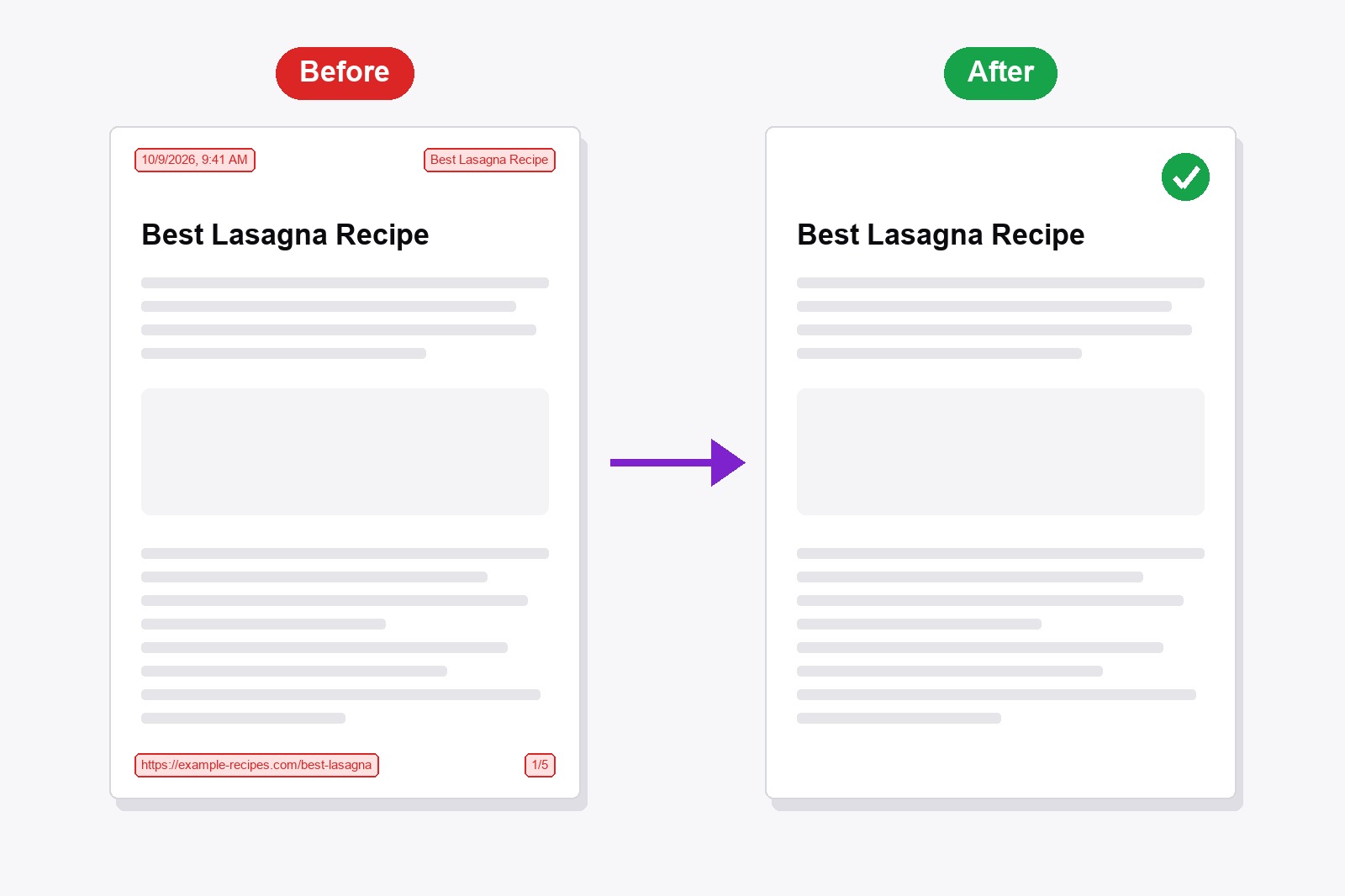
To remove the header and footer when printing in Chrome, press Ctrl+P (Cmd+P on a Mac), click More settings and untick Headers and footers. The date, page title, web address and page number disappear from the preview straight away. Chrome and Edge both work this way. Want clean pages every time, without hunting for that tickbox? Smart Print Pro is a free Chrome extension with a PRINT NOW button that prints without them: add it to Chrome.
What the header and footer are
Chrome adds a thin line of small grey text to every page it prints. At the top it puts the date and the page title. At the bottom it puts the web address and the page number. That is useful when you print something to keep as a record, and plain ugly on a recipe, a ticket, a boarding pass or a receipt you want to hand to someone.
How to remove header and footer in Chrome (and Edge), step by step
- Open the page you want to print and press
Ctrl+P(Cmd+Pon a Mac). The print preview opens. - Click More settings in the panel on the right. The extra options are folded away until you do.
- Untick Headers and footers. The preview updates at once, so you can check that the top and bottom lines are gone.
- Print, or choose Save as PDF. The tickbox applies to a PDF too.
Microsoft Edge has the same dialog, with the same tickbox in the same place. Chrome usually remembers the choice for next time, but it can switch back when settings are reset, which is why many people end up hunting for it again.
The easier way: let Smart Print Pro do it
Smart Print Pro is a free Chrome extension that cleans a webpage before you print it: it removes ads and popups with Auto-Clean, lets you cut off everything below a point, and has a Print Options section with a Headers & footers switch. It is off by default, so your pages print clean without you touching anything.
A browser extension is not allowed to tick Chrome's own tickbox, so Smart Print Pro does it a different way. It sets the page margins to a slim 8 mm. At that size Chrome has no room left to draw its own header and footer, so they do not print, whatever the tickbox says. We tested this in Chrome: nothing was drawn up to 8 mm of margin, and the lines came back from 9 mm.
- Install Smart Print Pro. Add it from the Chrome Web Store. Free, no account needed.
- Open the page and click the Smart Print Pro icon to open the side panel.
- Check Print Options. Headers & footers should be off. Tidy the page first if you like, with Auto-Clean.
- Click PRINT NOW or press
Alt+P. The print dialog opens and the page prints without the header and footer.
When you do want a header and footer
Sometimes the address and date are exactly what you need, for example to show where and when you printed a page. Switch Headers & footers on in Smart Print Pro and it prints its own: the page title and date at the top, the address and "page / total" at the bottom, in small grey text. That needs Chrome 131 or newer. On an older Chrome the switch does nothing, so use Chrome's own tickbox instead.
For website owners: hide it with CSS
If the page is yours, you can keep Chrome's header and footer off for everyone who prints it with one line of CSS:
@page { margin: 8mm; }Chrome only draws the header and footer when the page margin is big enough to hold them. A margin of 0 hides them too, but then the text sits right against the edge of the paper, so a small margin like 8 mm is the better choice.
Get the extension
Smart Print Pro is completely free. It prints clean pages with one click, and it keeps your Print Options for next time.
Smart Print Pro already saves your ink by wiping ads off the page. Want to keep even more cash in your pocket? Grab premium replacement ink and toner through 4inkjets →
This is a paid link. If you buy through it, we may earn a commission at no extra cost to you. Full disclosure →
Good to know before you start
- Chrome's tickbox and Smart Print Pro do the same job differently. Chrome hides its lines when you untick the box. Smart Print Pro leaves them no room with a slim page margin.
- Use PRINT NOW or Alt+P. That applies your Print Options just before the print dialog opens.
- Page margin becomes 8 mm top and bottom and 14 mm at the sides. The sides get a little narrower if you stretch the text to 90–100% of the width.
- Smart Print Pro's own header and footer need Chrome 131 or newer. On older versions use Chrome's Headers and footers tickbox.
- Your Print Options are remembered. Headers & footers and Background graphics stay as you left them.
FAQ
Yes. The Headers and footers tickbox in Chrome's print dialog applies to Save as PDF as well, so untick it before you save and the PDF comes out clean.
Not in Chrome. It is either on, with the date, page title, web address and page number, or off. Smart Print Pro works the same way: off for clean pages, or on for its own small grey header and footer.
So a printout can be traced back to where and when it was printed. That is handy for a research note or evidence, and just clutter on a recipe, a ticket or a receipt.
Check that the preview on the right has updated, and that you are not printing from another window. If you use Smart Print Pro, print with PRINT NOW or Alt+P: that is what applies your Print Options before the dialog opens. If you press Ctrl+P on a page where you have not touched the panel yet, the extension's page margin is not applied.
It works on normal webpages. Like any extension, it cannot run on Chrome's own pages (chrome://) or on the Chrome Web Store.
Yes. It is free, with no account needed.
Smart Print Pro — Free, No Account
Print clean pages: no ads, no header and footer, one click.







