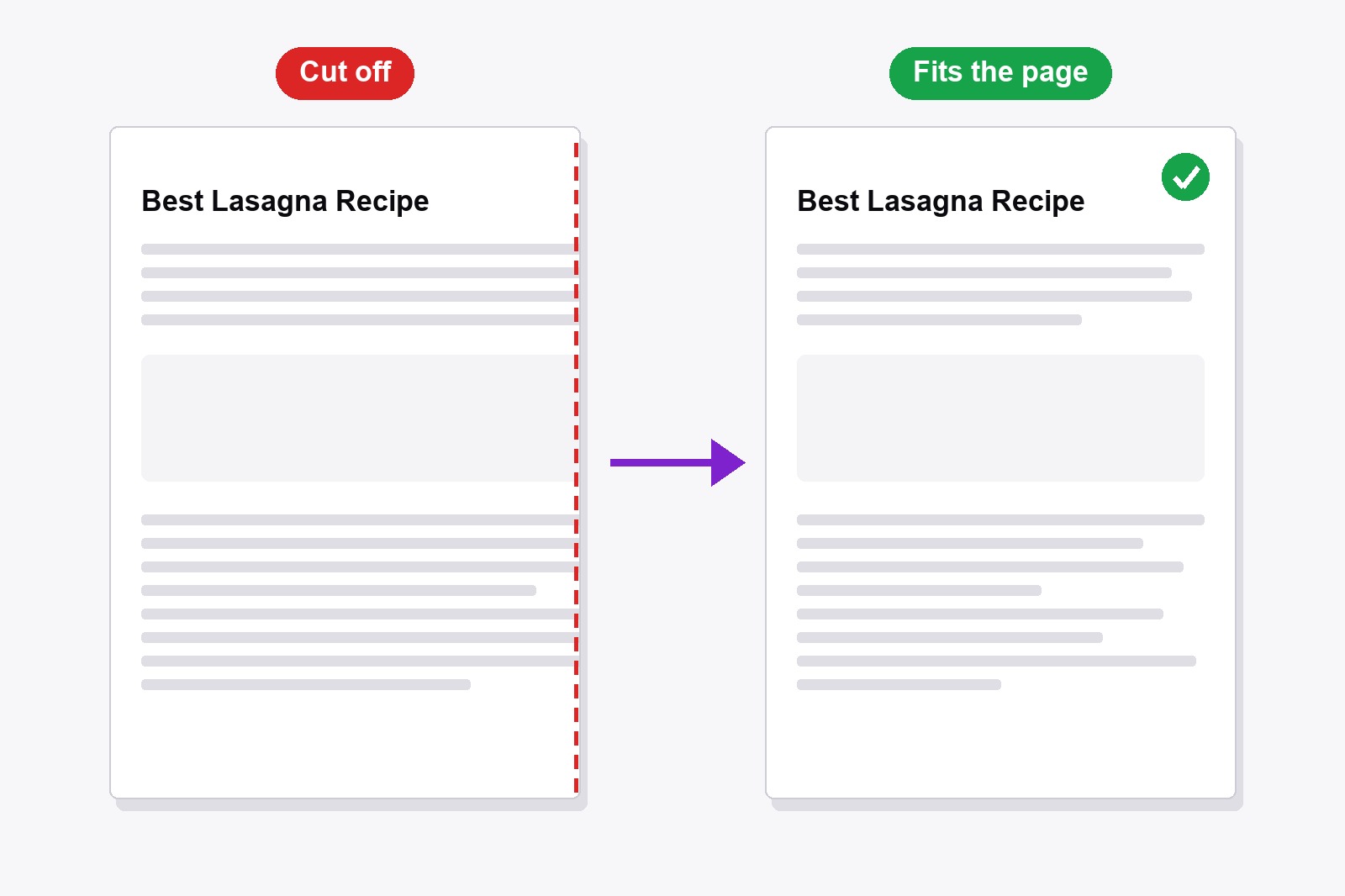
To print a web page without cutting it off in Chrome, press Ctrl+P (Cmd+P on a Mac), click More settings, set Scale to Custom and lower the number until the whole page shows in the preview. A wide page or a table often prints better in Landscape. Still sliced? Smart Print Pro is a free Chrome extension that turns the page into one clean column that fits the paper: add it to Chrome.
Why a printed web page gets cut off
A web page is built for a screen, not for a sheet of paper. When it prints, a few things go wrong. The page can be wider than the paper, so the right edge is sliced off. A section can have a fixed height, so text that does not fit inside its box is simply hidden. Menus and floating buttons can sit on top of the text, and pictures or tables can be split across two sheets.
Fix it in Chrome's print dialog
- Open the page and press
Ctrl+P(Cmd+Pon a Mac). The print preview opens. - Click More settings in the panel on the right.
- Set Layout to Landscape if the page is wide or has a table.
- Set Scale to Custom and type 90, then 80, and watch the preview. Stop when the right edge is back.
- Set Margins to Minimum if the edges still touch the border.
- Scroll through the preview to the last page, then print or choose Save as PDF.
If whole sections are missing, or text stops in the middle of a box, the page itself is hiding it. The dialog cannot fix that, and this is where the extension helps.
The easier way: let Smart Print Pro fit the page
Smart Print Pro is a free Chrome extension that tidies a page before you print it. It removes ads and popups with Auto-Clean and turns the page into one flowing column, and a width slider and Zoom let you fit it to the paper.
- Install Smart Print Pro. Add it from the Chrome Web Store. Free, no account needed.
- Open the page and click the Smart Print Pro icon to open the side panel.
- Click Auto-Clean (or press
Alt+A). The page becomes one column. - Adjust the width slider and Zoom until it looks right. The ↔ slider sets how wide the text column is, and Zoom has − and + buttons (
Altwith+or-works too). - Click PRINT NOW or press
Alt+P. The print dialog opens with your settings applied.
What Auto-Clean fixes on a cut-off page
- Hidden text. Boxes with a fixed height or hidden overflow are opened up, so everything inside shows.
- One column. Layouts built for a wide screen are flattened into a single column, and large side margins and maximum widths are removed.
- Pictures and tables. They are sized to the column, so they no longer run off the paper.
- Pieces kept together. Images, tables, quotes and code blocks are not split across two sheets.
- Floating bars. Sticky headers, menus and buttons that sit on top of the text are removed.
- Lazy pictures. Images that normally load only as you scroll are filled in, so they print instead of showing as empty boxes.
Very long pages
Chrome prints what is on the page. On an endless-scroll page, only what has already loaded is printed, so scroll to the bottom first. To leave out a long comment section, use Cut Below: click the point where the page should end and everything underneath disappears.
Get the extension
Smart Print Pro is completely free. It cleans the page, fits it to the paper and prints with one click, and it remembers your settings for next time.
This is a paid link. If you buy through it, we may earn a commission at no extra cost to you. Full disclosure →
Good to know before you start
- Check the preview first. What you see on the right of the print dialog is what comes out of the printer.
- Use PRINT NOW or Alt+P. That applies your zoom and reading width just before the print dialog opens.
- Zoom goes from 30% to 300% in steps of 10%. Alt and + or - change it from the keyboard.
- The width slider is a percent of the paper's text area, from 40 to 100. Past 90% the side margins also get slimmer, so the column really becomes wider.
- Undo brings the original page back. If Auto-Clean removes too much, one click restores it.
FAQ
Usually the page is wider than the paper. Lower the Scale in Chrome's print dialog, try Landscape, or use Auto-Clean in Smart Print Pro to turn the page into one column that fits.
Chrome prints the page the way the website lays it out. If the site hides text that does not fit inside a box of fixed height, or only part of an endless page has loaded, only that part prints. Scroll to the end of the page first. Smart Print Pro opens up the hidden boxes for you.
Yes. Save as PDF uses the same print preview, so Scale, Layout and Margins apply to it too, and so do your Smart Print Pro settings.
Lower the Scale in the print dialog until the preview shows one page. The more you shrink it, the smaller the text gets, and it becomes hard to read quickly, so a long page is usually better printed over a few sheets.
It works on normal webpages. Like any extension, it cannot run on Chrome's own pages (chrome://) or on the Chrome Web Store.
Yes. It is free, with no account needed.
Smart Print Pro — Free, No Account
Print clean pages that fit the paper: no ads, one column, one click.







