The page is almost ready to print. You've closed the cookie banner, scrolled past the ads — but one thing just won't go away. A floating "subscribe now" box sitting right in the middle of the article. An embedded video that refuses to leave. A related-posts grid some theme developer decided belongs between two paragraphs. It's not the whole page that's the problem anymore. It's just that one thing. Erase the ads, print without the drama! (paid link)
There's a free tool for exactly this: Smart Print Pro
Smart Print Pro is a free Chrome extension built to clean up any webpage before you print it or save it as a PDF. Most of the work happens automatically — one click runs Auto-Clean and strips out the obvious clutter: ad slots, cookie banners, navigation bars, footers. That alone solves most pages.
But every website is built differently, and some clutter doesn't follow the usual pattern — a custom promo box, a theme-specific widget, a newsletter form hard-coded into the article body. These are one-off quirks of that particular site, not something a general cleaning rule can reliably predict. For exactly that situation, Smart Print Pro has a second, more targeted tool: the Precision Eraser.
Meet the Precision Eraser
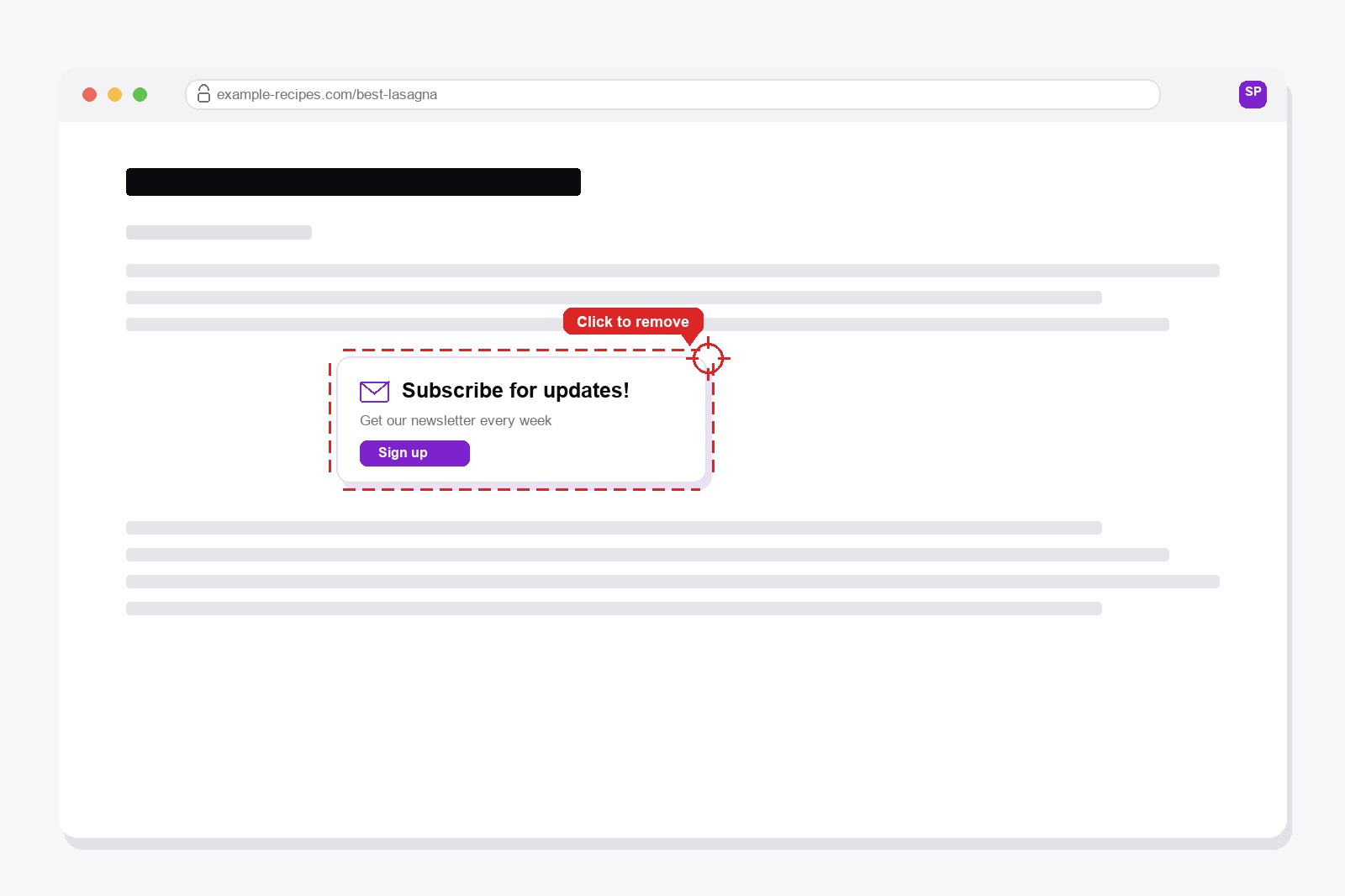
The Precision Eraser is Smart Print Pro's answer to "I just need this one thing gone." Turn it on, and the moment you hover over any part of the page, that exact element gets outlined in red with a crosshair cursor — the button, the image, the entire box, whatever your mouse is sitting on. Click it, and it disappears instantly.
It stays on until you turn it off, so you can click through several leftover elements one after another — the promo box, then a stray image, then an empty widget — without re-opening the panel each time. And there's a small safety net built in: clicking the empty page background itself won't wipe out the whole page by accident, only a real element does.
How to use it — step by step
- Install Smart Print Pro. Add Smart Print Pro from the Chrome Web Store. Free, no account needed.
- Run Auto-Clean first. It strips out the obvious clutter in one click — do this before anything else.
- Turn on the Eraser. Click "Eraser" in the panel, or press
Alt+R. Your cursor becomes a crosshair. - Hover and click the one thing left over. Whatever you're pointing at gets outlined in red — click it to remove it, and repeat for anything else that's still bothering you.
- Print or save as PDF. Use
Ctrl+Pas normal, once the page finally looks the way you wanted it to from the start.
A couple of things worth knowing
- It erases exactly what's under your cursor — a tiny button or an entire content block, depending on where you aim.
- Made a mistake? Hit Undo (
Alt+Z) right after, before you do anything else. - It pairs well with "Chop the Rest" — use the Eraser for a leftover element in the middle of the page, then Chop the Rest to cut off everything below a certain point, like comments or a related-articles footer.
- None of this touches the real webpage. Reload it and everything is exactly as it was.
Get the extension
Smart Print Pro is completely free. Auto-Clean handles most pages on its own — the Precision Eraser is there for the stubborn 5% that needs a human's judgment call.
Smart Print Pro already saves your ink by wiping ads off the page. Want to keep even more cash in your pocket? Grab premium replacement ink and toner through 4inkjets →
This is a paid link. If you buy through it, we may earn a commission at no extra cost to you. Full disclosure →
Good to know before you start
- Look at the preview before you print. Auto-Clean removes ads and clutter by pattern, and can also remove real parts such as notes, footnotes, embedded maps or videos.
- Undo goes back up to 10 steps. After an Undo, some interactive parts of the page may need a reload.
- It doesn't work on PDFs, Chrome's own pages or the Chrome Web Store.
- Print settings belong to the browser: background graphics, headers and footers and margins are set in the print dialog.
- Images that load only when you scroll may stay blank, so scroll to the bottom of the page before you print.
FAQ
Yes. The Eraser stays on until you turn it off — click one element to remove it, then click the next one, and so on.
Use the Undo button (or Alt+Z) right after. It steps back through your last changes, including anything the Eraser removed.
After. Run Auto-Clean first to strip the obvious clutter automatically, then use the Eraser only for the specific leftover thing it didn't catch.
Yes. Whatever is directly under your cursor when you click gets removed — that can be a small button, an image, or an entire block of content, depending on where you aim.
No. It only changes what's displayed in your browser tab for printing or exporting. Reload the page and everything is back to normal.
Smart Print Pro — Free, No Account
Strip ads and clutter from any webpage before you print or save it as a PDF.







