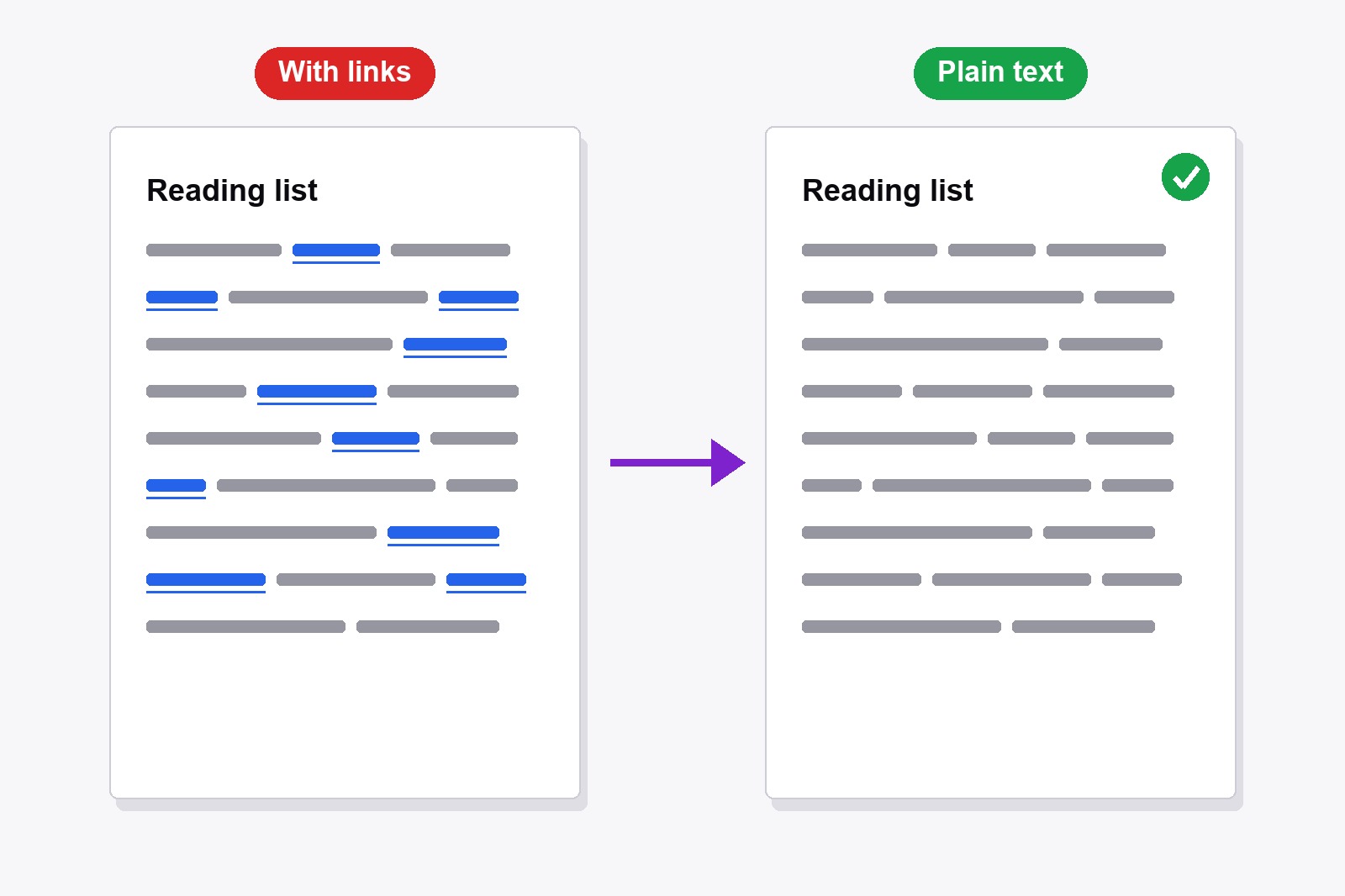
To print a webpage without links, open the free Smart Print Pro extension and click Disable Links (or press Alt+L), then print as usual. Every link on the page turns into plain text in the color around it, with no blue and no underline, so the printout reads like a normal document. Click the button again and the links come back. Chrome has no switch like this of its own, so this is the quick way: add Smart Print Pro to Chrome, it is free.
Why links look wrong on paper
On a screen a blue underlined link says “click me”. On paper nobody can click, so the blue and the underline are just noise. They break up your sentences, they use a little colored ink, and on a page full of links (a wiki article, a news story, documentation) the whole sheet looks like it was marked with a pen. If you are printing a recipe, a report or something you will hand to another person, plain text simply looks calmer and more professional.
Smart Print Pro already saves your ink by wiping ads off the page. Want to keep even more cash in your pocket? Grab premium replacement ink and toner through 4inkjets →
How to turn links off, step by step
- Install Smart Print Pro. Get it from the Chrome Web Store. It is free and needs no account.
- Open the page you want to print and click the Smart Print Pro icon. The side panel opens.
- Click Disable Links (the button with the chain icon), or press
Alt+L. A small message says Links Disabled. - Look at the page. The links now have the color of the text around them, no underline, and they no longer react to clicks.
- Print. Click PRINT NOW (or press
Alt+P), or useCtrl+Pas always. Check the preview, then print.
Changed your mind? Click Disable Links again (or press Alt+L) and the message says Links Enabled. Everything is back as it was.
What changes, in plain words
The links do not disappear. Their words stay exactly where they are, they just stop looking and behaving like links:
- Color. A link takes the color of the text next to it, so no more blue.
- Underline. Gone.
- Clicking. Switched off while Disable Links is on, so you cannot leave the page by accident while you tidy it up.
- The text. Untouched. Nothing is deleted, so your sentences still make sense.
- Other tools. This switch is independent, so it works together with Auto-Clean, the Eraser and Cut Below.
When to use it, and when something else fits better
- Just want a clean article? Start with Auto-Clean. When you print, it already shows links in dark text without underline. Use Disable Links when you want that on the screen too.
- The page is a wall of links. Wikipedia-style articles and documentation read much better with the links switched off.
- You use the Eraser or Edit. With links off you cannot click a link by mistake while you work on the page.
- Something is still blue? Then it is probably not a link but colored text or a button. Remove it with the Eraser or change it with Edit.
- You need the links back? One more click on Disable Links, or
Alt+L.
What it will not do
It does not delete links and it does not print the web address behind them. Some websites add the address after each link in their own print style, and this button does not touch that, so check the preview. And one thing we tested: if you use Save as PDF, Chrome still keeps the link behind each word, so the PDF looks plain but the words can still be clickable. Printing on paper has no such leftovers. The date and web address at the very top and bottom of every sheet are another setting, explained in how to remove the header and footer.
Link words, explained
- Link (hyperlink). A word, picture or button that takes you to another page when you click it. On paper it cannot do that, which is why it looks pointless there.
- Anchor text. The visible words of a link, like “this guide”. Disable Links keeps the anchor text and only changes how it looks.
- URL (web address). The address behind a link, like example.com/page. A link hides it, and a normal printout does not show it.
- Print style. Rules a website can add just for printing. A few sites use them to print the address after every link.
- Link in a PDF. When you save a page as a PDF, the link behind each word is stored in the file, so it can stay clickable even when it looks like plain text.
- Header and footer. The date, page title and address Chrome puts at the top and bottom of every printed page. That is a separate setting from links.
Get the extension
Smart Print Pro is completely free. Besides Disable Links it has Auto-Clean, Eraser, Edit, Cut Below and PRINT NOW, all in one side panel. It remembers your print options (headers and footers, background graphics) for next time, but Disable Links works per page: on a new page, links are back to normal until you switch it on again.
This is a paid link. If you buy through it, we may earn a commission at no extra cost to you. Full disclosure →
Good to know before you start
- Shortcut: Alt+L. Press it again to bring the links back.
- The words of the links stay in the text. Only color, underline and clicking change.
- Auto-Clean already prints links dark. Use Disable Links to get the same look on screen.
- A saved PDF can keep hidden links. The words may stay clickable although they look plain.
- Chrome has no built-in switch for this. That is why the extension helps.
FAQ
Not directly. Chrome’s print settings have no option for links: you can drop the header and footer and the background graphics, but links keep their blue underline. Smart Print Pro adds the missing switch.
No. The words stay in the text, they only lose the color and underline and stop reacting to clicks. Click the button again and everything is back.
They can. When you use Chrome’s Save as PDF, the link behind each word is still stored, so the words may be clickable even though they look plain. On paper there is nothing to click.
Click Disable Links again or press Alt+L. A small message says Links Enabled.
Yes. The Disable Links switch is independent, so you can combine it with Auto-Clean, the Eraser, Edit and Cut Below in any order.
That is Chrome’s header and footer, not a link. You switch it off in the print dialog under More settings, by clearing Headers and footers.
Smart Print Pro — Free, No Account
Print pages that read like documents: plain links, no ads, one click.







