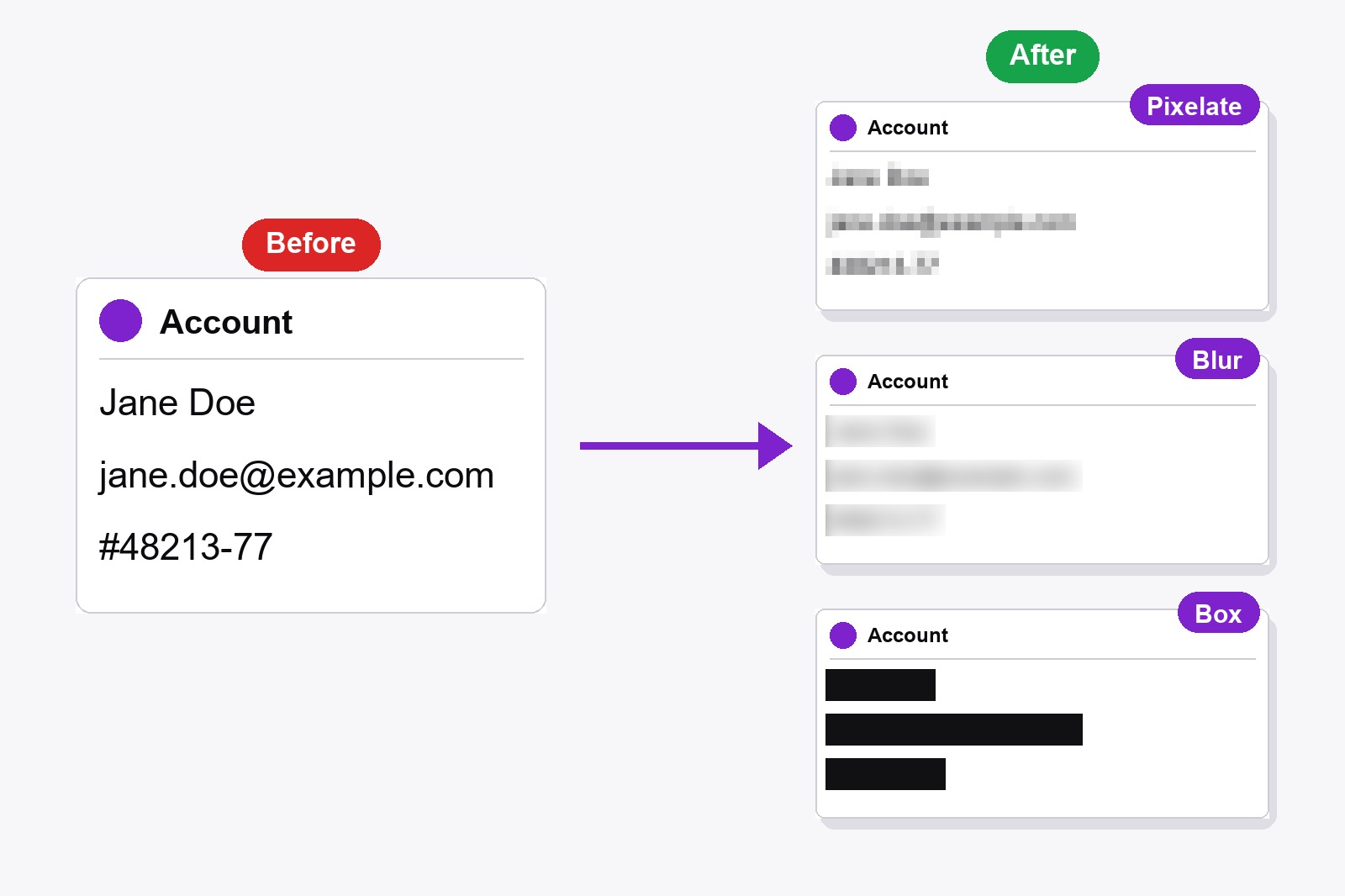
To blur sensitive info in a screenshot, capture the page with the free Scrollshot extension, pick the Blur / Censor tool in the editor, drag a box over the name, email or number, and save the image. The covered area is changed in the picture itself, so the original text is no longer in the file you share. Everything happens in your browser and nothing is uploaded.
Why a blur tool and not a marker?
A highlighter or a thin outline still lets the text show through. A censor tool changes the pixels of the picture itself, and that is what you want when a screenshot is going into a bug report, a support chat or a tutorial that other people will read.
How to blur part of a screenshot, step by step
- Install Scrollshot. Get it from the Chrome Web Store. It is free and needs no account.
- Capture the page. Open the page, click the Scrollshot icon, pick a mode (Full Page, Visible, Region or Element) and click Capture.
- Open the editor. Your shot opens in the editor (if it does not, switch on Open editor after capture in the popup settings).
- Pick the Blur / Censor tool, the icon with small squares in the editing toolbar. The Blur style options appear.
- Choose a style and a strength (more on that below), then drag a box over the name, email or number. When you let go, the area is covered.
- Save it. Click Download image, or Copy to paste it straight into a chat or an email. Made a mistake? Press
Ctrl+Zbefore you save.
Pixelate, Blur or Box: which style to pick
- Pixelate (the default). Turns the area into a mosaic of colored squares. A good all-round choice for names, emails and order numbers. A higher Strength makes the squares bigger.
- Blur. A smooth, soft blur that looks calmer on the eye. All three styles are free.
- Box. A solid bar in the color you picked. There is no Strength setting, because nothing is left to guess. Pick black for passwords, card numbers and keys.
The Strength slider goes from 1 to 10 and starts at 1 (it goes back to 1 when you switch style). Raise it until the text can no longer be read, then zoom in and look again.
Is blurred info really hidden?
In the saved image the pixels under the box are replaced, so the original letters are not in the file anymore. How safe that is depends on the style and the strength: a light blur or a fine mosaic over short, plain text can sometimes still be guessed. For anything that would hurt if it leaked (passwords, card numbers, API keys, ID numbers) use Box. And if you already sent the unblurred file somewhere, blurring a copy later does not take it back.
What people usually hide
- Names and email addresses in a bug report or a support ticket.
- Order numbers, invoice numbers and addresses before posting a receipt.
- Account IDs and API keys in a tutorial or documentation.
- Other people's names and messages in a screenshot of a chat.
- Phone numbers and balances on an account page.
A small tip: draw the box a little bigger than the text, so no edge of a letter peeks out, and cover one area at a time. You can blur as many areas as you like in the same screenshot.
Good to know before you start
- Blur works on the screenshot, not on the live page. It is a tool in the editor that opens after you capture. To remove things before you capture, use the Hide Elements mode instead.
- Boxes only. You drag a rectangle over the area. There is no freehand blur.
- All three styles are free. Pixelate, Blur and Box need no upgrade and no account.
- Undo and Redo work. Press Ctrl+Z to step back and Ctrl+Y to step forward, up to 40 steps.
- Nothing is saved until you save it. Download, copy or Save to History keeps your edited version. History is stored in your browser on this computer.
- It cannot capture Chrome's own pages or the Chrome Web Store. Try it on any normal website instead.
FAQ
Yes. Capturing, the editor and all three styles (Pixelate, Blur and Box) are free, with no account.
Box. It paints a solid bar, so nothing of the text is left to guess. Pixelate is a good second choice at a higher Strength.
The original pixels are not in the saved file, but a weak blur or a fine mosaic over short text can sometimes be guessed. For secrets use Box, or raise the Strength and check the result by zooming in.
Yes. Drag a box over the first area, then another over the next one. Each is applied on top of the picture, and Ctrl+Z steps back one at a time.
No. Scrollshot works locally in your browser, so your screenshot never leaves your computer.
Not with the Blur tool: it works in the editor after the capture. If you want to hide parts of a page before the capture, Scrollshot has a Hide Elements mode.

Scrollshot — Capture Exactly What You Need
Built by GetPlugzz. Local processing only: nothing uploaded, nothing tracked.






