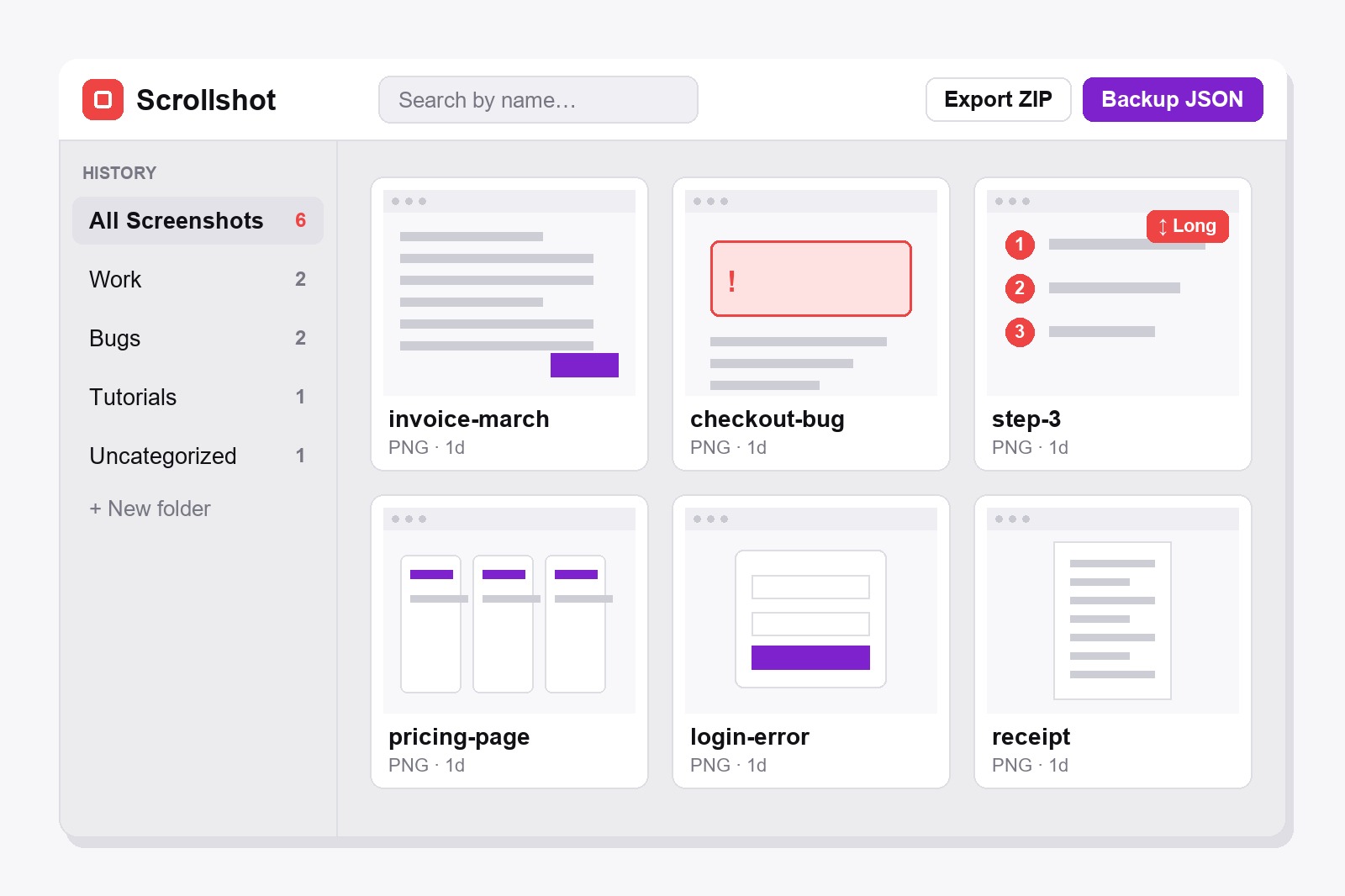
To find, organize and back up your screenshots in Chrome, use the gallery of the free Scrollshot extension. Click its icon, then History: every capture is already there. Search by name, drag your shots into folders with the folder button on each card, and keep a safety copy with Backup JSON (everything in one file) or Export ZIP (plain image files). It all stays in your browser, nothing is uploaded and you need no account.
Why your screenshots turn into a mess (and a quiet panic)
It starts innocently. One screenshot for a bug report, one for a receipt, one for “I will look at this later”. Three months on, you have 400 files called things like Screenshot (47).png, and the one you need is somewhere between a cat photo and a tax form. Chrome itself has no gallery for them. A real gallery fixes the three annoying parts: finding a shot, sorting it, and not losing it when the computer has a bad day.
How to find, organize and back up your screenshots, step by step
- Install Scrollshot. Get it from the Chrome Web Store. It is free and needs no account.
- Capture as usual. Every capture (full page, visible area, region or element) is saved to the gallery on its own. Edited a shot? Click Save to History in the editor and pick a folder in the little dropdown next to it.
- Open the gallery. Click the Scrollshot icon, then History. A small badge shows how many screenshots you have saved.
- Make folders. In the sidebar click + New folder and give it a name: Work, Bugs, Tutorials, Receipts. Anything not in a folder waits in Uncategorized.
- Put each shot where it belongs. Hover a card and click the folder button, then pick the folder (or No folder to take it out again). Rename a shot by double-clicking its title, and give it a name you will remember, like invoice-march.
- Find things fast. Type in the search box: it filters by name as you type. Prefer bigger or smaller thumbnails? Switch the grid between 3, 4 and 5 columns, and Scrollshot remembers your choice.
- Back it up. Click Backup JSON to save everything (screenshots and folders) into one file, or Export ZIP to get plain image files. Put the file somewhere safe, like a cloud drive or a USB stick.
What every card in the gallery can do
- Click the picture to open it in the editor and keep working: arrows, blur, text, crop. Save it again when you are done.
- Download. Saves the image to your computer in its own format (PNG, JPEG or WebP).
- Move to folder. The folder button on the card opens a list of your folders, plus No folder.
- Rename. The pencil, or a double-click on the title. Good names are what makes the search useful.
- Split into pieces. Tall screenshots wear a Long badge. This button cuts one into numbered pieces, handy when a tool only accepts short images.
- Delete. Removes one shot for good, after a confirmation.
A small tip: you can delete a folder without losing its screenshots. Scrollshot asks whether to keep them in Uncategorized or to delete them together with the folder, so read the button before you click.
ZIP or JSON: which backup do you need?
Export ZIP gives you ordinary image files, ready to attach, share or open in any other program. If you have folders, you choose whether to export all screenshots, one folder or Uncategorized, and two shots with the same name get a (2) so nothing is overwritten. Backup JSON is the full copy: every screenshot plus your folders in one file. Use Restore JSON to load it into Scrollshot again, on this computer or a new one, and choose either Replace all or just add the missing ones (those land in Uncategorized).
Who keeps a gallery like this
- Support and QA people with a Bugs folder, so the proof is one search away.
- Designers collecting references, one folder per project.
- Writers of guides and tutorials, who capture first and annotate later.
- Anyone gathering receipts, orders or research that must still be findable in a year.
- People changing computers. One JSON file and the whole collection moves with you.
Pair it with the other tools: add arrows and numbered steps to a shot, blur the private bits, then save it into the right folder.
Good to know before you start
- Your gallery lives in this browser, not in a cloud. It is stored in Chrome on this computer. Clearing browser data or removing the extension can wipe it, so make a Backup JSON now and then.
- Search looks at names only. It does not read the text inside a picture, which is why a good name matters.
- Deleting a folder asks what to do. You can keep its screenshots in Uncategorized or delete them with it.
- Restore can add or replace. Adding skips shots you already have and puts the new ones in Uncategorized. Replace all swaps your whole collection for the backup.
- All of it is free. Folders, search, ZIP export and JSON backup need no upgrade and no account.
- It cannot capture Chrome’s own pages or the Chrome Web Store. Try it on any normal website instead.
FAQ
In the gallery, which lives in your browser on this computer. Nothing is uploaded. Open it by clicking the Scrollshot icon and then History.
In the gallery click + New folder to make one, then hover a screenshot, click its folder button and pick the folder. You can also choose a folder when you click Save to History in the editor.
Type part of its name into the search box in the gallery. Search works on names, so rename shots you care about to something you will remember.
No. Search matches the name of the screenshot, not the words in the picture.
Click Backup JSON in the gallery and save the file. On the other computer, install Scrollshot, open History, click Restore JSON and pick the file.
ZIP gives you plain image files to use anywhere. JSON is a complete copy, with folders, that only Scrollshot can restore. Keep JSON as your safety net and use ZIP when you want the pictures themselves.
Scrollshot does not limit the number. They are stored in your browser, so a huge pile of very tall screenshots takes disk space. A backup now and then keeps things tidy.
No. Scrollshot works locally in your browser, so your screenshots never leave your computer.

Scrollshot — Capture Exactly What You Need
Built by GetPlugzz. Local processing only: nothing uploaded, nothing tracked.






