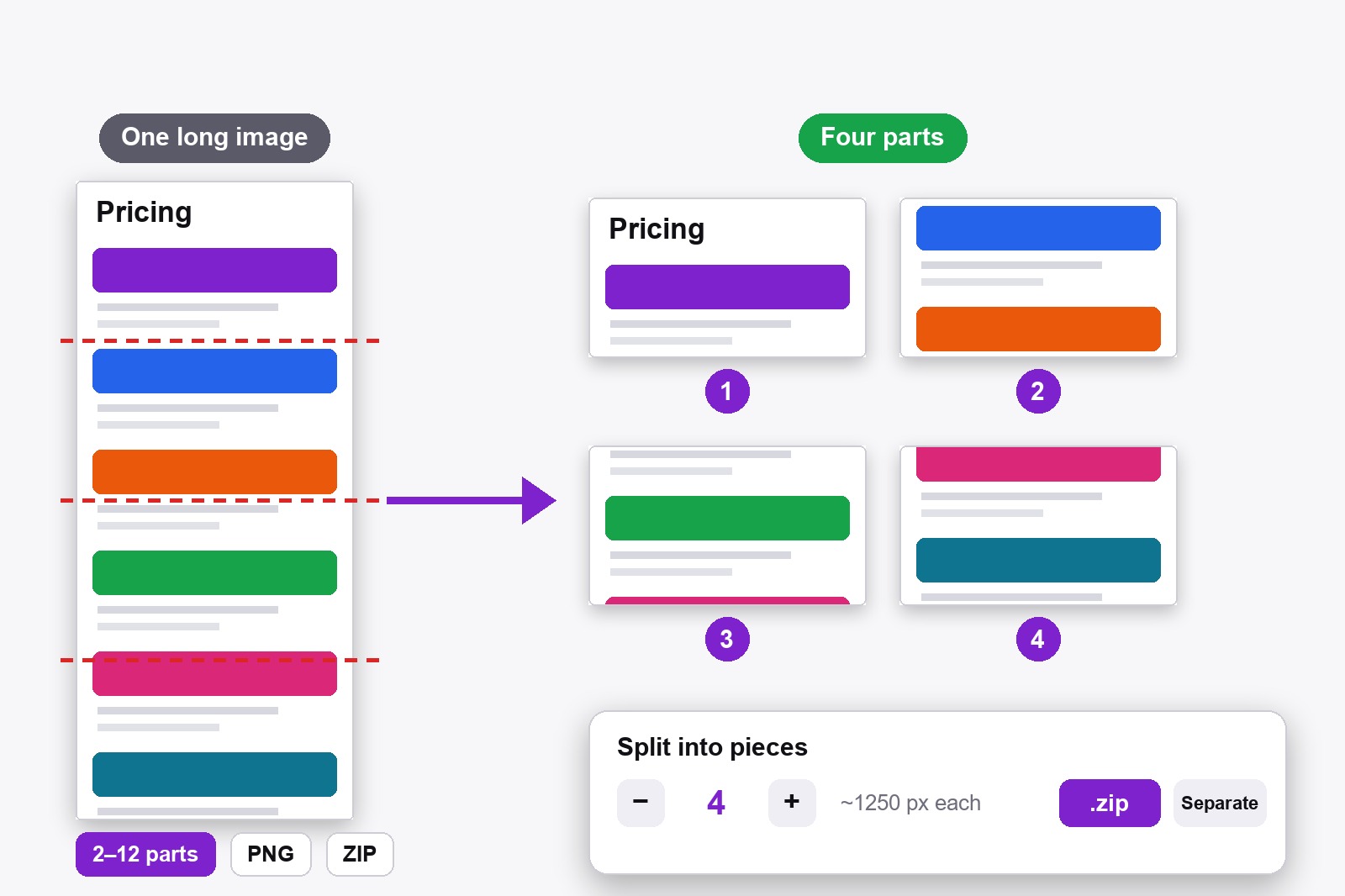
To split a long screenshot, open it in the free Scrollshot editor, click Split in the top bar, pick how many parts you want (from 2 to 12) and choose .zip or Separate. You get numbered PNG files of equal height and the same width, ready to read, print or send. It all runs in your browser and nothing is uploaded.
Why one very long screenshot is a problem
A full-page screenshot can be 6,000 pixels tall or more. Paste it into a chat, a document or a print preview and it is squeezed down until the text is too small to read. Some tools simply refuse an image that tall. Cut into pieces of a sensible size and the same page reads like a short series of pictures, one after another. Scrollshot even suggests the number for you, aiming at about 1,500 pixels per piece, so you rarely have to think about it.
How to split a long screenshot, step by step
- Install Scrollshot. Get it from the Chrome Web Store. It is free and needs no account.
- Make the long screenshot. Capture a page with Full Page, or click Upload and open a tall image you already have.
- Edit it first if you want. Arrows, text, blur or a background and frame are all included, because Split cuts exactly what you see in the editor.
- Click Split in the top bar, next to Download. A small box called Split into pieces opens.
- Check the number of parts. Scrollshot picks one for you, based on the height. Use the − and + buttons to change it. The box shows the size of each piece, for example ~1250 px each.
- Choose how to save. .zip puts all the pieces into one ZIP file. Separate saves them as individual PNG files, one after another.
- Open the files. They are named after the page title and numbered in order: title-1.png, title-2.png and so on. The button shows Split ✓ when it is done.
How many parts, and ZIP or separate?
- Let Scrollshot choose. It aims for about 1,500 pixels per piece, which is a good size for reading, chat tools and a printed page. A 5,000-pixel screenshot becomes 4 pieces.
- Fewer, bigger pieces when you want the page to flow, for example to read it on a laptop. More, smaller pieces when you want something easy to read on a phone.
- Not too small. The + button stops where a piece would drop below about 600 pixels, so you can’t slice a page into thin strips by accident. The limit is 12 parts.
- .zip is the tidy choice: one download, everything in order. Good for e-mailing the set or keeping it together.
- Separate is for when you want the files straight in your Downloads folder, or you plan to upload them one by one.
One thing to know: the cuts are made at equal heights, not at paragraph breaks, so a line of text can end up split between two pieces. If that bothers you, change the number of parts by one and the cut moves.
Quick recipes for common jobs
A long page for a chat tool: split it into pieces of about 1,500 pixels and send them in order, so each one stays readable. A page to print: split it, then print the pieces one per sheet. A tutorial for social media: add numbered steps with the annotation tools, split, and post the pieces as a carousel. If you need an exact size for a platform, run each piece through Crop afterwards. A report for a colleague: save as .zip and attach the one file.
Who splits long screenshots
- Anyone sending a long page to a chat tool that shrinks or rejects tall images.
- Students and researchers who capture a long article and want to read it piece by piece.
- Support teams and testers who document a long page for a ticket.
- Creators turning one long image into a set of slides.
- Anyone printing a screenshot and tired of it printing tiny.
It pairs well with the other tools: capture with full page, hide private data with blur, make it look good with a background and frame, then split. Saved screenshots land in your gallery.
Good to know before you start
- It splits what you see in the editor. Backgrounds, frames, arrows and text are included in the pieces.
- The pieces have equal heights and the full width. Only the last piece can be a little shorter.
- The cuts do not follow the content. A line of text can be divided between two pieces. Change the number of parts to move the cuts.
- Between 2 and 12 parts. A piece never gets smaller than about 600 pixels, and the box shows the size of each one.
- Files are PNG and named after the page title. The ZIP is called title-split.zip, and the pieces are numbered 1, 2, 3 and so on.
- It is free and stays on your computer. No account and no upload, and it does not work on Chrome’s own pages or the Chrome Web Store.
FAQ
Open the screenshot in the Scrollshot editor, click Split in the top bar, choose how many parts you want and save them as a ZIP or as separate PNG files.
From 2 to 12. Scrollshot suggests a number for you, aiming at about 1,500 pixels per piece, and stops you from making pieces smaller than about 600 pixels.
Yes. They have the same width and the same height. Only the last piece can be a little shorter, if the height does not divide evenly.
Not exactly. The cuts are made at equal heights. If a line of text is cut, change the number of parts by one and the cut moves.
ZIP gives you one download with everything in order. Separate saves individual PNG files one after another. Both give the same pieces.
Yes. It splits what you see in the editor, including a background, a frame, arrows, text and blur.
Yes. Splitting is free, with no account.
No. Scrollshot works locally in your browser, so your screenshot never leaves your computer.

Scrollshot — Capture Exactly What You Need
Made by GetPlugzz. Local processing only: nothing is uploaded, nothing is tracked.






